How to Automate Recurring Tasks in Projects in
Odoo 16
Automation reduces the time and effort required for repetitive tasks. Team members can focus on more strategic and creative aspects of their work, leading to increased overall productivity. By automating routine tasks, project teams can accomplish more within the same timeframe. This can be particularly beneficial in meeting tight project deadlines and improving overall project throughput. Team members can focus on tasks that require human expertise, while repetitive and time-consuming tasks can be handed off to automated processes. Automated systems are often more adaptable to changes in project requirements or scope. They can be modified or reconfigured to accommodate new tasks or alterations in the project plan.
Let us now explore the feature of automating recurring tasks that can come across multiple projects or routine tasks that are executed in every project through the Odoo 16 Project Application. Firstly, we need to activate this feature in the settings page of the Project application.
Project Application => Configuration menu => Settings => Tasks Management section =>Recurring Tasks => Save

Now, the routine repetitive tasks will be automatically generated for all projects created in the Project application.
We need to specify the tasks that need to be automatically repeated. For that, Select the particular task of that project which is a recurrent task. For example, I need to give internal training for my team members every Thursday for the project Office Design.

After adding the task, project, and assignee names, you can attach them to a sales order item and enter Milestone in the provided box to have your services delivered automatically when a milestone is met. To charge the right customer for the project’s time, mention the customer and the sales order item. Give the project a deadline and give it the right label.
In the ‘Recurrent’ tab of the selected task, enable the ‘Recurrent’ option. Then, some additional fields appear below this option where we can define the repetition day, the number of repetitions, and the end period.

Days, Weeks, Months, Years, and the number of repeats are the variables you can use to choose the frequency. Additionally, the user can choose the end date of the recurrence from the “Until” column, which offers choices like “Forever,” “End date,” and “Number of Repetition.” We may notice the notification that a new task will be created on the dates indicated above because the job’s recurrence is configured based on days to repeat every week.
Additionally, we can observe that the Recurrence is scheduled as indicated below if we check the task’s smart button.

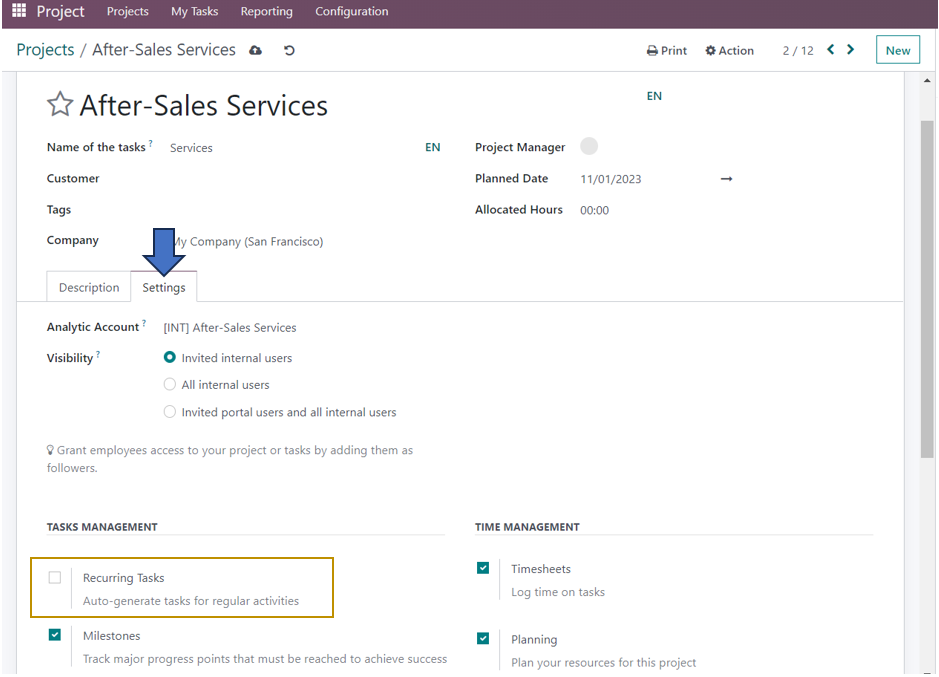
If you don’t want the recurring tasks to be generated automatically for a particular project or some of the projects, you have the option to select the project and disable the auto-generation of recurring tasks.
For that, we need to select the project in the Kanban view, click on the three vertical dots menu at the top-right corner of the project’s Kanban card, and select Settings.

Go to the ‘Settings’ tab of the project to unselect the ‘Recurring Tasks’ option in the Tasks Management section.
Odoo thus enables project managers to keep track of repetitive tasks which can be automated thus saving much time and managing multiple projects in a less time-consuming way. Infintor Solutions provide innovative customizable solutions through automation and integration.