Managing Sales Orders Across Multiple
Warehouses in Odoo 19
Businesses that store inventory across multiple locations often need a structured way to fulfill customer orders efficiently while maintaining clear stock visibility. Managing Sales Orders Across Multiple Warehouses in Odoo 19 allows businesses to fulfill customer orders efficiently while keeping track of inventory in different locations. It ensures accurate stock allocation, prevents delays, and improves overall customer satisfaction. This documentation explains how to process Sales Orders across multiple warehouses in Odoo 19 when inventory is spread across different warehouse locations.
To add a new warehouse in your inventory system:
Go to Inventory App → Configuration → Warehouse → New
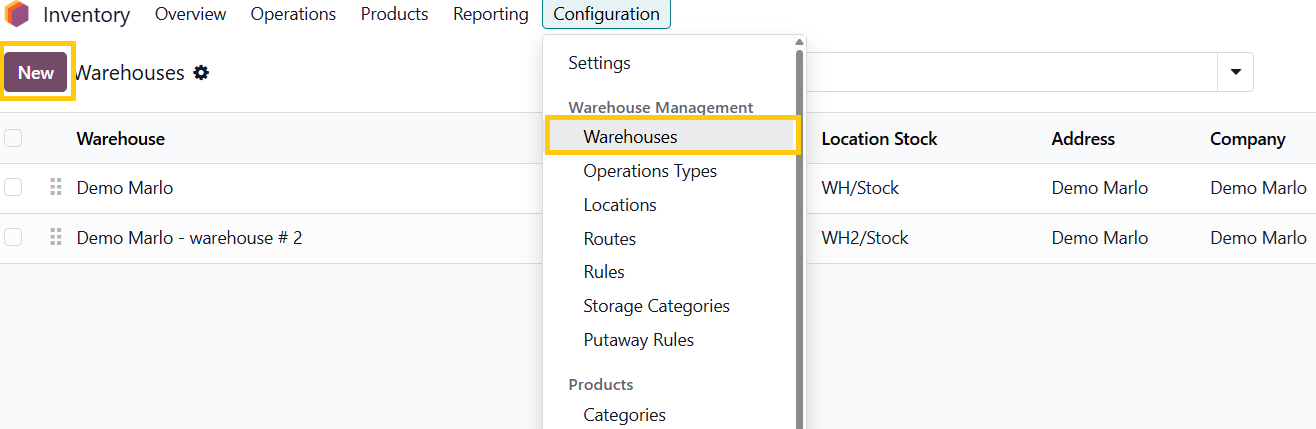
In the new warehouse page, click on Routes :
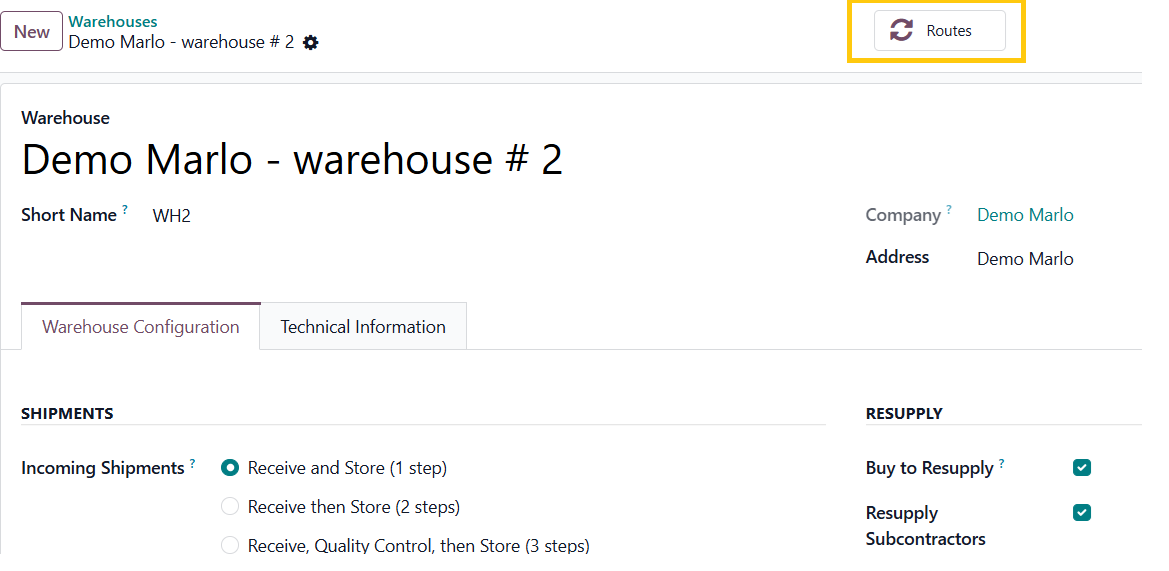
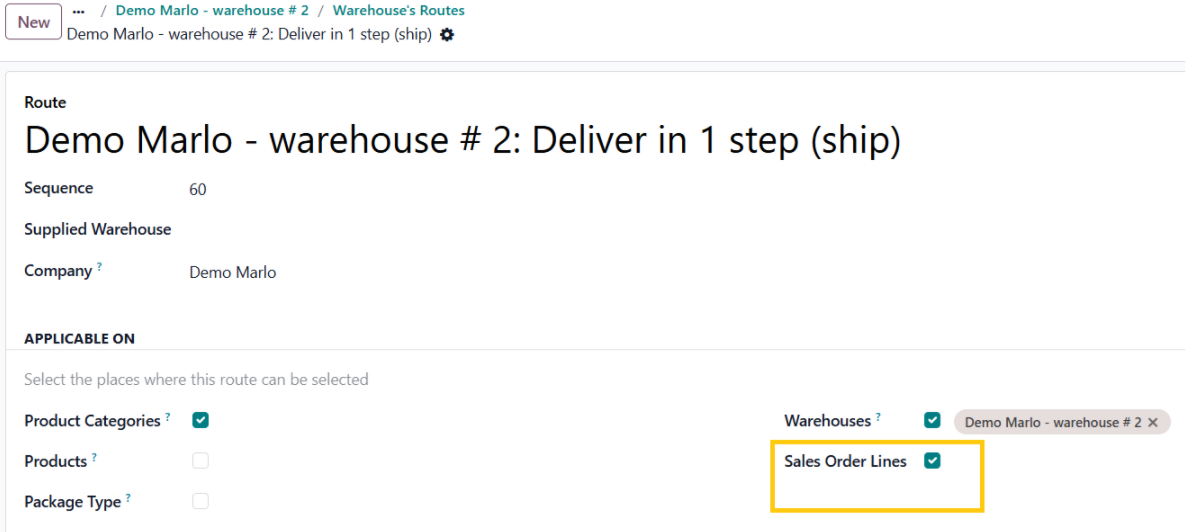
Routes –> Warehouse 2 Deliver in One Step (ship), and enable Sales Order Lines:
You can add stock into a warehouse in two ways:
- Add New Stock: Directly receive new inventory into the warehouse.
- Internal Transfer: Move existing stock from another warehouse to the new warehouse using the Internal Transfer feature in the inventory system.
Performing an Internal Transfer
In the Inventory App, Go to Operations → Internal → New
Set the operation type to Internal Transfer and verify that the source and destination locations are correct. Then click Mark as To Do and Validate.
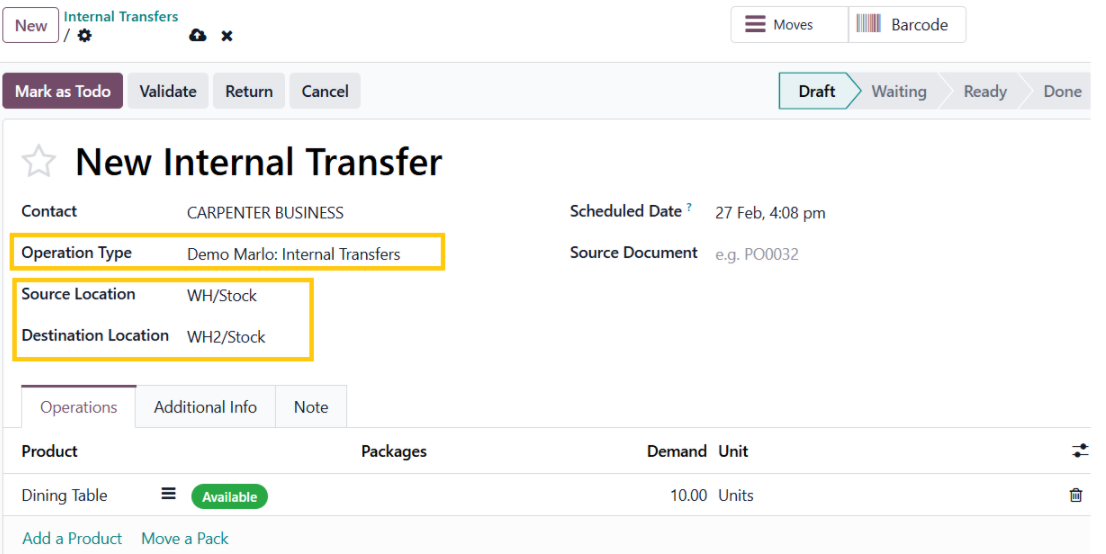
To view the detailed movement of stock, click on the Moves icon at the top. This displays all the individual stock moves associated with the transfer.
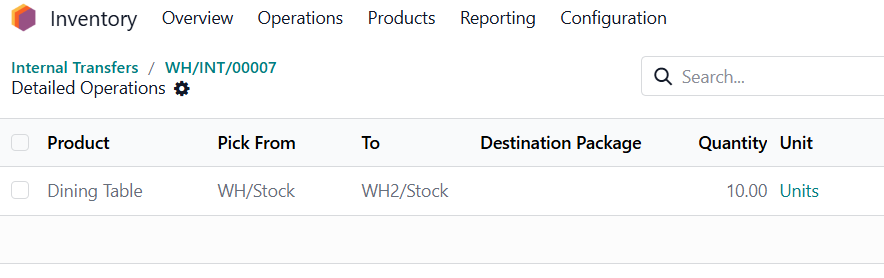
To check the available quantity of a product in each location:
Navigate to Reporting → Stock Locations and apply a filter for the required product. Odoo displays the available quantity across all warehouse locations.
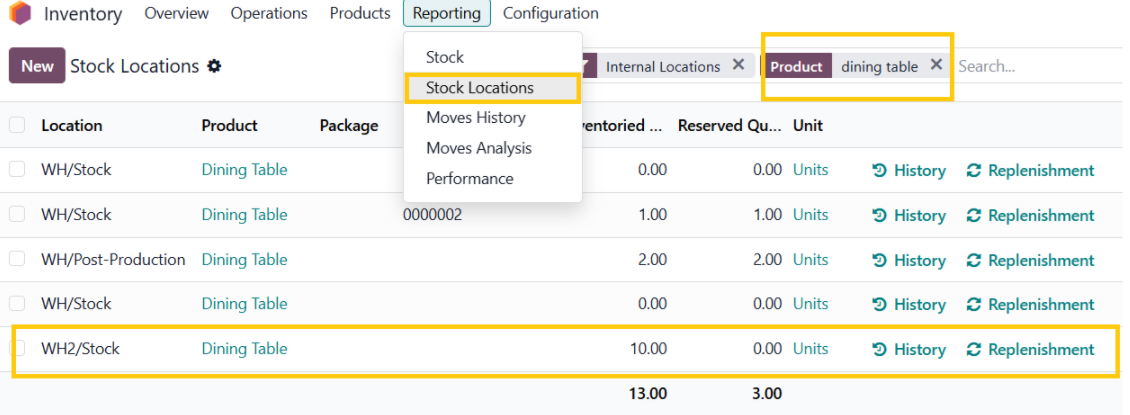
Creating Sales Order with Products from Different Warehouses
Go to Sales App → Orders → Quotation → New
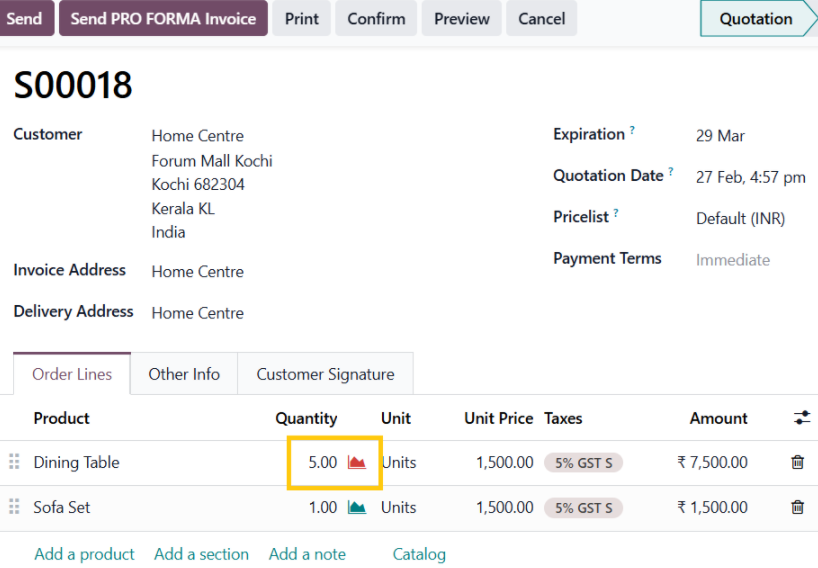
The red icon in the sales order indicates that the requested quantity is unavailable. This happens because the system is still sourcing the product from the main warehouse, while the new warehouse currently holds the available stock.
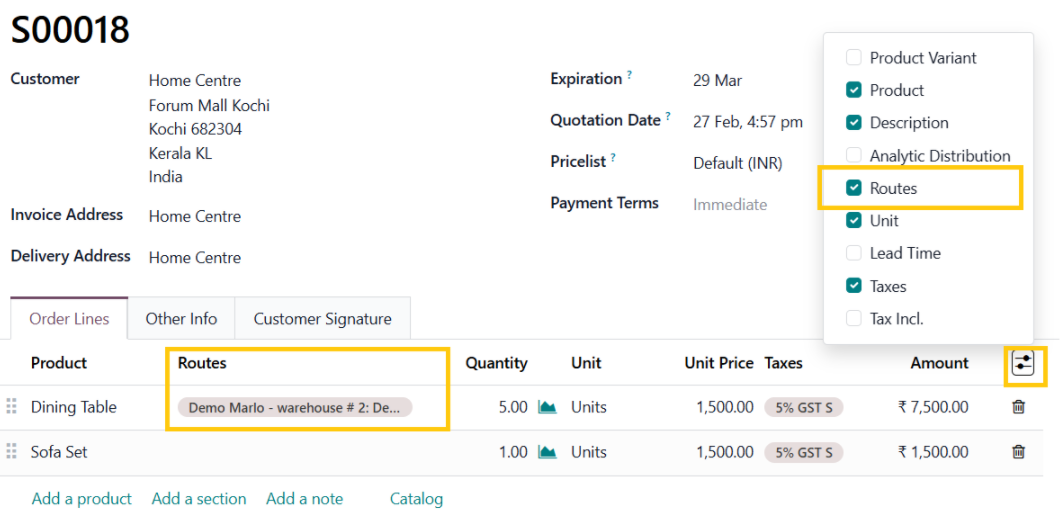
In the Routes column, select the new warehouse and click Save. The forecast indicator turns green, showing that the required quantity is now available. You can then confirm the sales order.
When you click the Delivery icon, Odoo automatically generates two delivery orders.
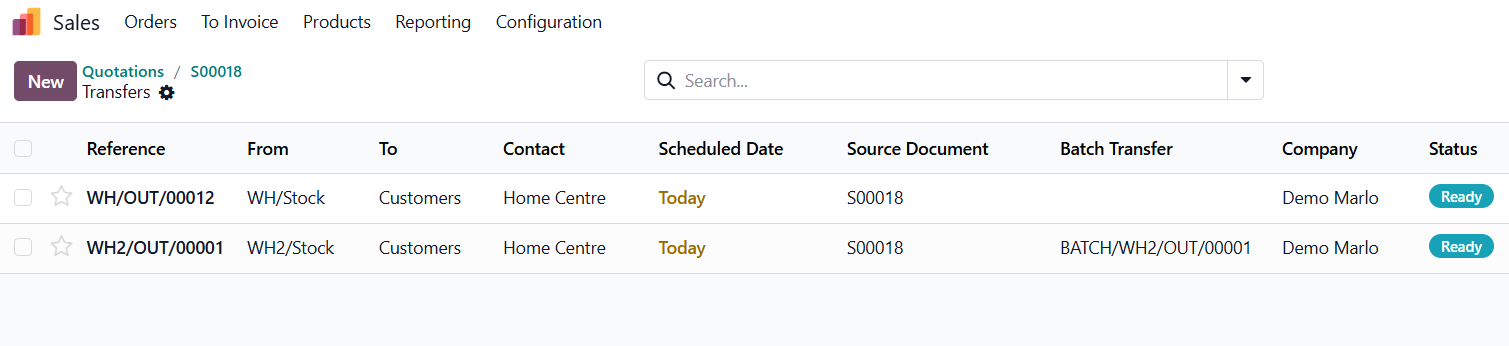
Upon validating both delivery orders, their status will change to Done, indicating that the products have been successfully delivered from the respective warehouses.
In conclusion, managing sales orders across multiple warehouses ensures accurate stock allocation and smooth order processing. By selecting the appropriate warehouse and routes, the system automatically handles deliveries based on stock availability, allowing orders to be fulfilled efficiently from different locations.
Multiple warehouses? No problem! Let Odoo handle your Sales Orders smoothly — For expert guidance and consulting, reach out to us at infintor.com