How to Set Up Product Discounts in Odoo 19
Product discounts in Odoo 19 can be configured using the Pricelists feature in the Sales module. Pricelists let businesses define structured discount rules that apply automatically on sales orders — eliminating manual price adjustments and ensuring consistent pricing. This guide walks through the complete setup of product discounts in Odoo 19, from enabling the Pricelists feature to verifying the discount on a live quotation.
Enabling Pricelists and Discounts
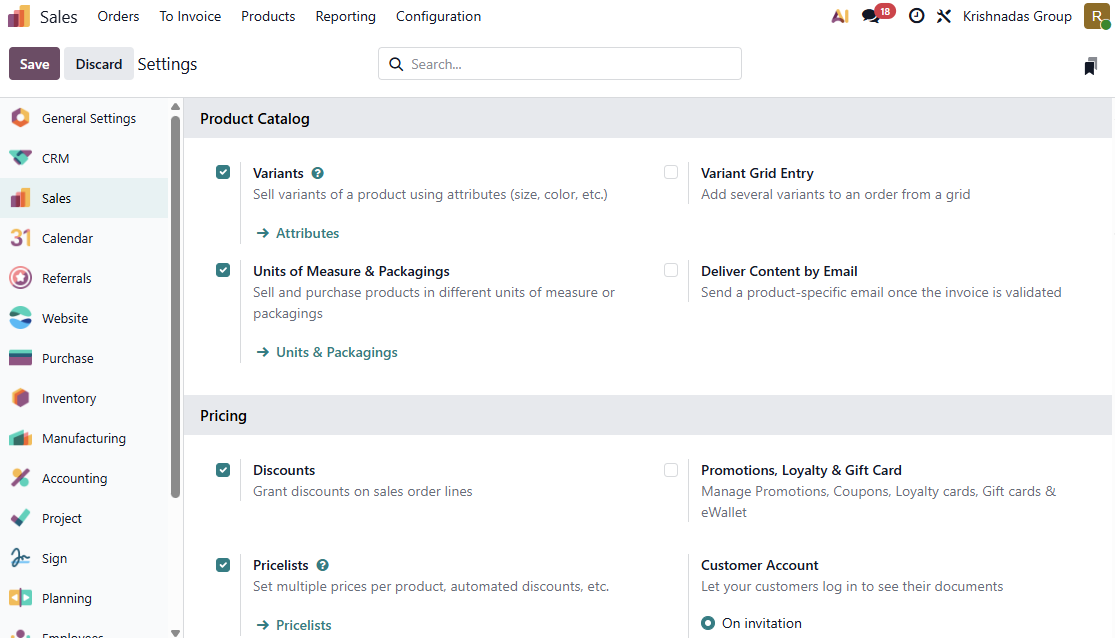
Go to Sales → Configuration → Settings and scroll to the Pricing section.
Enable the Pricelists checkbox. This unlocks the menu at Sales → Products → Pricelists. Also enable the Discounts checkbox. This adds a Disc.% column to sales order lines.
Click Save.
Creating a Pricelist
Go to Sales → Products → Pricelists → New.
Enter a descriptive name in the title field at the top. Then configure:
- Company: Assign to a specific company in multi-company setups, or leave blank for all
- Country Groups: Restrict to specific regions if needed

Configuring a Price Rule
In the Rules tab, click Add a line. Odoo opens a dialog titled “Create Pricelist Rules” with the following fields:
Apply To: Click Product to target a specific item, or Category to apply the rule to an entire product category. By default (when neither is clicked), the rule applies to all products.
Price Type: Select one of three options:
Price Type | How It Works |
Discount | Applies a percentage off the product’s sales price |
Formula | Calculates price using discount %, rounding, and extra fee |
Fixed Price | Sets a flat price regardless of the sales price |
Discount: When Discount is selected as the price type, enter the percentage (e.g., 10 for 10% off).
Min Qty: The minimum quantity the customer must order for this rule to activate.
Validity: Optionally set start and end dates for seasonal or time-bound discounts.
Click Save & Close to save the rule.

Building Tiered Discounts
Add multiple rules for the same product with increasing quantities to create progressive discounts:
Min Qty | Discount | Effect |
2 | 10% | Buy 2+, get 10% off |
5 | 15% | Buy 5+, get 15% off |
10 | 20% | Buy 10+, get 20% off |
Odoo automatically picks the highest qualifying rule. An order of 7 units triggers the 15% discount (Min Qty 5), not the 10% one.

Assigning the Pricelist to a Customer
Go to Sales → Orders → Customers and select the customer.
Open the Sales & Purchase tab and set the Pricelist field to the desired pricelist. Save the form. Every new quotation for this customer now uses this pricelist automatically.
You can also change the pricelist directly on any individual Sales quotation using the Pricelist field on the form — without changing the customer’s default.

Verifying the Discount on a Sales Order
Go to Sales → Orders → Quotations → New.
Select a customer who has the pricelist assigned, add the product, and set the quantity to meet the minimum threshold. Odoo evaluates the rules and applies the discount automatically. The Disc.% column on the order line shows the percentage applied.
The discounted price carries through to the confirmed sales order, the invoice, and sales reports — no manual adjustment needed.

FAQ’s
1. Can I apply a discount to a particular product category?
Yes. In the price rule dialog, select Category in the Apply To field, then choose the required category in the Category field below. The discount applies to every product in that category when the minimum quantity is met.
2. What happens if a customer orders less than the minimum quantity?
The rule does not activate. The product is sold at its standard sales price. Odoo only triggers the rule when the order line quantity meets or exceeds the configured Min Qty.
3. Can different customers get different discounts?
Yes. Create separate pricelists with different rules and assign each to the respective customer on their contact form under the Sales & Purchase tab.
Looking to automate product discounts in Odoo 19 for your business? Connect with the experts at Infintor.com for a customized consultation.