
How to Set Up Work Centers and Routing in Odoo
19
In manufacturing, production follows a series of steps at specific stations within a factory. A desk may go through cutting, machining, painting, assembly, quality testing and packaging before it is ready for delivery. Each of these steps happens at a particular location with specific equipment and operators. In Odoo 19, these production stations are known as Work Centers, and Operations on the Bill of Materials define the sequence of steps, forming the routing for the product. Configuring work centers and routing allows Odoo to schedule production, calculate manufacturing costs per operation, generate individual work orders for each step and track the performance of each station.
Understanding Work Centers
A Work Center in Odoo is a physical station or area in a factory where specific tasks take place. This can be a cutting table, a CNC machine, a welding booth, an assembly line, a quality inspection bench or a packaging counter. Each work center carries parameters that affect production scheduling and cost calculation.
The key parameters on a work center are the cost per hour, which determines the hourly operating cost of that station, the setup time, which is the preparation time needed before each operation begins, the cleanup time, which is the time needed to reset the station after each operation ends, the time efficiency, which adjusts the expected duration to reflect the actual speed of the station, and the OEE target, which sets the minimum Overall Equipment Effectiveness benchmark for performance tracking.
Work centers can also have Alternative Work Centers configured. An alternative work center is a backup station that can perform the same operation when the primary station is busy or under maintenance. In addition, product capacity defines how many units a work center can process simultaneously.
Understanding Routing
Routing in Odoo 19 is defined through Operations on the Bill of Materials. Each operation specifies the name of the step, the work center where it happens and the expected duration in minutes. The BoM lists operations in sequence, and Odoo executes them in the same order when generating work orders for a Manufacturing Order.
After a Manufacturing Order is created and confirmed for a product with defined operations, Odoo automatically generates work orders for each operation. These work orders allow tracking, starting, pausing, and completing each operation through the Manufacturing application or the Shop Floor interface
Enabling Work Orders
Enable the Work Orders feature to use work centers and routing.
Manufacturing Application => Configuration => Settings
Under the Operations section, enable the Work Orders checkbox. Optionally, enable Work Order Dependencies if operations need to follow a strict sequence where one step must complete before the next can begin. Click Save.
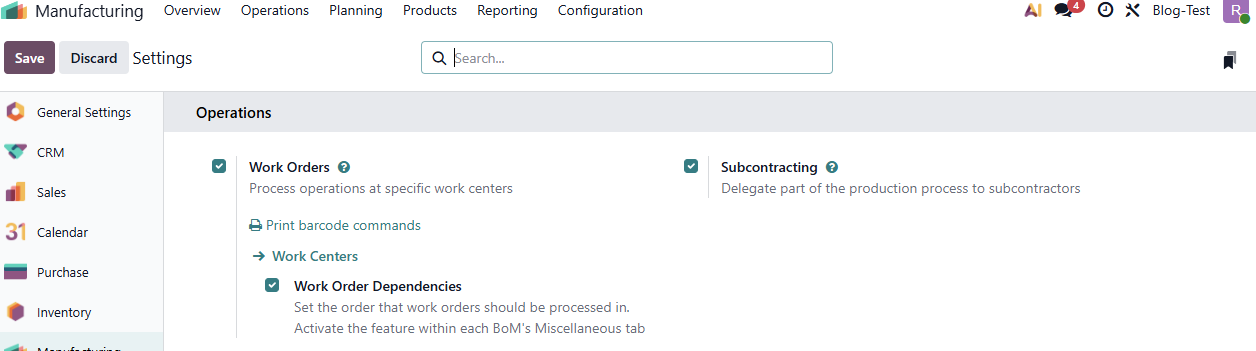
After saving, Odoo creates a few default work centers. These default work centers can be replaced with actual production stations from the factory
Creating Work Centers
To create a new work center, open the Manufacturing application and navigate to the work center configuration.
Manufacturing Application => Configuration => Work Centers => New
On the work center form, fill in the name for the station along with a code (short reference) if necessary. Under production information section we can provide setup time and cleanup time required for the work center. The OEE Target field sets a benchmark for tracking actual production performance. The Time Efficiency field calculates the expected duration of a work order at this work center.
We can also provide costing information such as hourly operating cost of the station. If required, select the employees allowed to use this work center by listing them in the Allowed Employees field, if left empty all employees can log in to the work center.
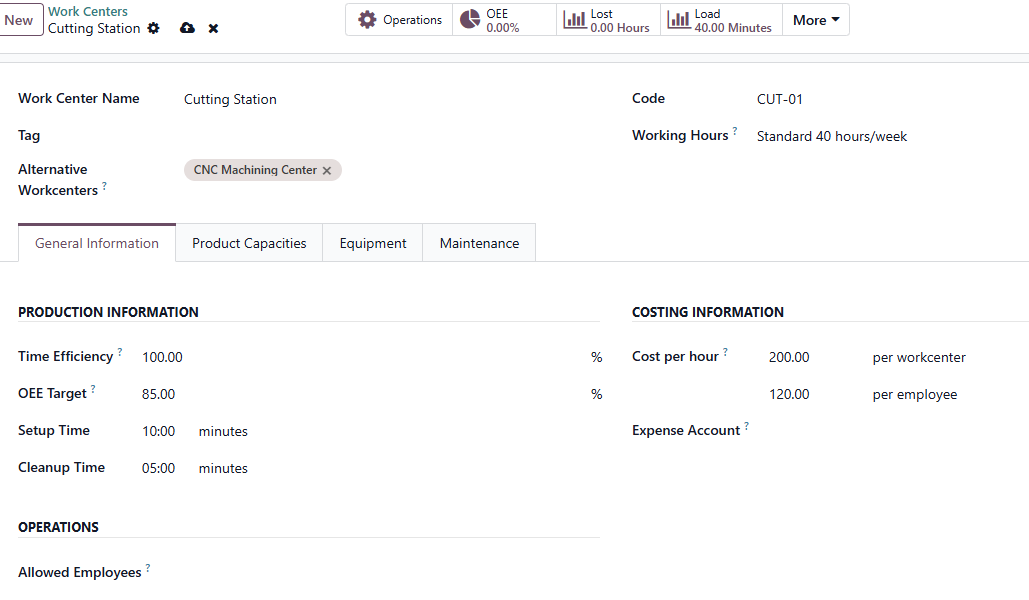
Additional settings available on the work center form include the Working Hours which defines the schedule of the station, Alternative work centers to set up backup work centers, the Product Capacities tab for setting up capacity of the work center, the Equipment tab to allocate equipment to this work center and finally maintenance tab to assign maintenance team for this work center.
Configuring Alternative Work Centers
Alternative work centers allow Odoo to route work orders to a backup station when the primary is at full capacity or unavailable. For example, a factory with two assembly lines can configure one as an alternative for the other. When the primary assembly line reaches full capacity, Odoo assigns pending work orders to the alternative station.
Manufacturing Application => Configuration => Work Centers => Select the Work Center
Open the work center form and navigate to the Alternative Work Centers tab. Add the backup stations that can perform the same type of work. The alternative configuration can be mutual — Station A can serve as an alternative for Station B, and Station B can serve as an alternative for Station A.

Creating the Product and Bill of Materials with Operations
After configuring work centers, the next step is to create a product and define its routing using operations on the Bill of Materials.
Manufacturing Application => Products => Products => New
Create the finished product with the product name, cost price and sales price.
Manufacturing Application => Products => Bills of Materials => New
Select the product and set the BoM type to Manufacture this Product.
Adding Components
In the Components tab, add all the raw materials and parts required to manufacture the product along with their quantities.
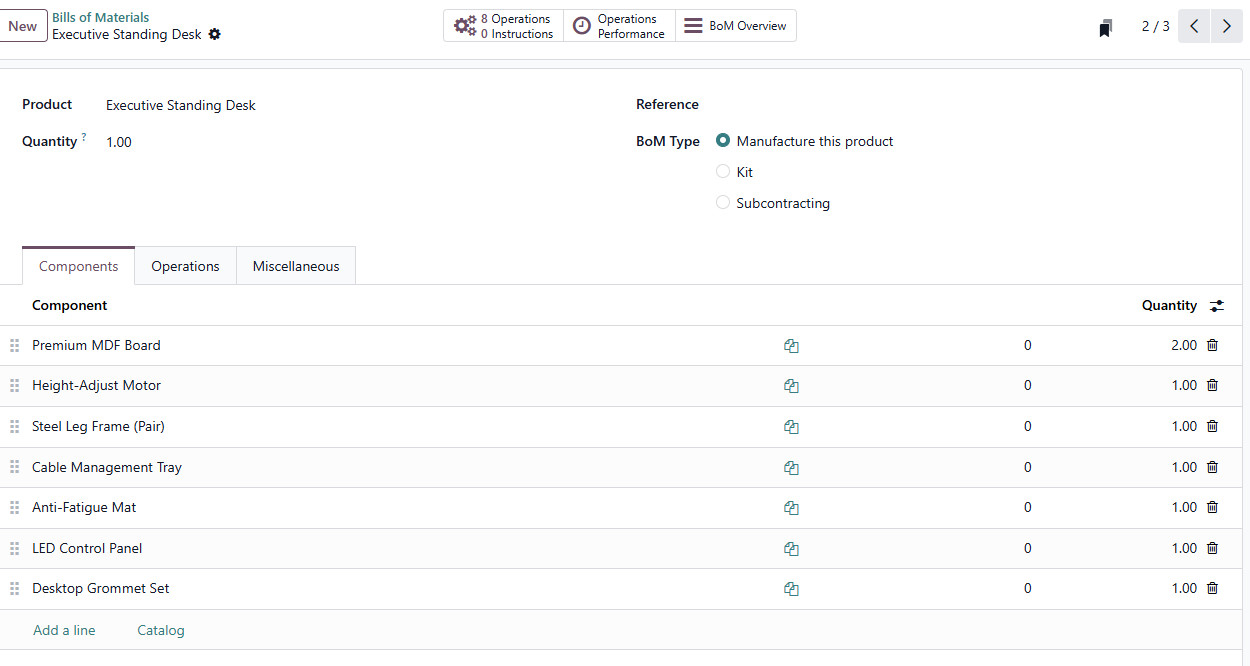
Adding Operations (Defining the Routing)
In the Operations tab, add the manufacturing steps in the order they should be performed. For each operation, specify the following.
Operation Name — A descriptive name for the step, such as Cut Panels to Size, Weld Frame or Final Packaging.
Work Center — The station where the operation takes place. Select from the work centers created earlier.
Duration — The expected time in minutes for completing the operation on one unit of the product. This represents the cycle time and excludes setup and cleanup, which the work center configuration adds automatically.

Operations can be reordered by dragging them into the required sequence. The BoM sequence determines how Odoo generates and executes work orders.
For example, a standing desk might have the following routing — cutting raw panels, CNC machining for edge profiling, sanding and surface preparation, applying finish, welding the metal frame, assembling all components, quality inspection and final packaging. Each step is assigned to the appropriate work center with its expected duration.
Conclusion
Work Centers and Routing in Odoo 19 bring structure and visibility to the production floor. By defining each factory station with its cost rate, setup and cleanup times and efficiency parameters, and by listing the sequence of operations on the Bill of Materials, businesses enable Odoo to schedule production accurately, calculate detailed manufacturing costs per operation, generate trackable work orders for operators and measure station performance through OEE. The configuration is a one-time setup effort that improves planning and cost accuracy for every Manufacturing Order created.
Need help setting up work centers and routing in Odoo 19? Infintor Solutions can help you configure and optimize your manufacturing workflows with ease.