How to Set Up Project Milestones in Odoo 16?
Milestones represent significant achievements or stages of completion within a project. They help break down the overall project into manageable parts, making it easier to focus on and achieve specific goals. They are often tied to deliverables, and achieving them allows for client or stakeholder review and feedback. As milestones are associated with quality checks or assurance points, it ensures that the work completed at each milestone meets the required standards and specifications. By establishing milestones, you create a timeline or roadmap for the project. This timeline helps in planning and organizing tasks, ensuring that the project stays on schedule. Achieving milestones provides a sense of accomplishment for the project team. It boosts morale and motivation as team members see tangible results and progress toward the overall project goals.
This blog post will go over how to set up a project milestone and how to use it to monitor progress. Let’s navigate to the Odoo Project module’s settings, as indicated below, to activate this option.
Project module => Configuration menu => Settings => Tasks Management section => Milestones => Save

Next, let’s select the Project menu, create a new project, activate timesheets and planning, and save. In this project, we are going to define its milestones.
Project module => Projects menu => New

After the project has been created, the next procedure is to add tasks to the project and construct its stages. You can add Tasks under each stage by selecting the ‘+’ icon of that stage.

Here, I have created a task ‘Resource Allocation’ as a first step for the project.

On selecting the created task, the names of the task, project, and assignees are available. By linking it to a sales order item, you may enter Milestone in the provided box to have your services delivered automatically when a milestone is met. To charge the right customer for the project’s time, mention the customer and the sales order item. Give the project a deadline and give it the proper label. Depending on the project, we may offer our clients any kind of service. There are many different kinds of service sales: fixed-price agreements (like projects), billed based on time and materials (like consulting hours), prepaid in terms of hours or days (like support contracts), and based on milestones.
Invoicing Project Milestones

We have created a product that is classified as a service in the Product Type field, with the invoicing policy based on Milestone, and Create on Order as Tasks for our project.
With this product, we can now create a sales order.
Sales Application => Orders menu => Quotations => New

Since the product, ‘Factory Engineering’ is connected with a project and its related tasks which we mentioned in the product form, Smart buttons such as Projects, Milestones, and Tasks become visible when the quotation is confirmed. The milestone for the project can be added from here by selecting the ‘Milestones’ smart button and clicking on the ‘New’ option.

This is how a sales order item can be linked with the project milestone. As can be seen below, if we look at the project module, we can see that a task will be created under our previously established project, ‘Factory Renovation’.

Once the task is finished, we can add it to the timesheet and update the task to the next step accordingly, as shown below. For the task that was established, it appears as though ten hours are remaining, which represents the allotted time for that specific activity.

Let’s return to the project and review its updates from the Project Updates menu, as indicated below, once the task has been updated to the done state after completion.

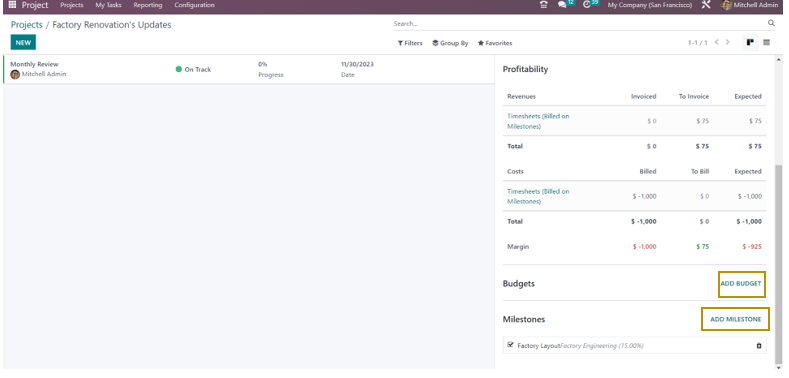
Upon clicking, a window displaying all project updates on Profitability, Milestones, Budget, Sales, and other aspects of the project will be displayed, as illustrated below.

You can input the project’s current condition with project updates. This status is subject to change at any time. You can view the most recent project update by examining the Status that appears next to the project title. You can determine the status on your own per the project’s progress if it hasn’t already been decided. This could be in one of the following states: On Track, At Risk, Off Track, or On Hold. These states are distinguished by different hues, which facilitates understanding of the situation. The project status feature provides us with a summary of the project’s status and enables you to share your progress with stakeholders. Now let’s look at how to set the status of a project.
In the Project Updates window of the project, click on the ‘New’ button.

We can specify the status of the project update as On Track, At Risk, Off Track, or On Hold. Sold and Profitability are the two submenus located under the Activities menu. The Sold menu contains additional information on the services and related parts. The Sold menu allows you to view the services that have been sold, the number of effective hours or units spent on them, the number of planned hours or units under the service, and the amount of work that still needs to be done in hours or units to finish the project. Views of the Milestones and Profitability are also available. Profitability shows the spent amount out of the total allocated budget along with the cost of the project, revenue, and margin. The Milestones section shows all the added milestones along with their status.

Let’s examine what will happen to the saved project update when you select the Status option. Selecting the status option will allow you to receive an extensive summary of the project updates. This includes the situation assessment and weekly report. From the Project Updates page, you can view the overall number of tasks related to the project, the hours forecast, the timesheet and planning, the budget, the collaborators, the recorded hours, the burndown chart, the billable time, and the gross margin. It also displays the expected profitability for the previously indicated budget. Furthermore, you may add as many milestones as necessary to the project and track them as needed.
Thus, Milestones help in managing the project budget effectively. By tracking progress against milestones, project managers can identify any budgetary concerns early on and take corrective actions if necessary. In summary, setting up milestones is a fundamental aspect of project management that enhances organization, communication, and the overall success of a project by providing clear targets and structure throughout its lifecycle. Odoo 16 Project Management module from Infintor Solutions can help Project Managers track the progress of projects and identify areas of improvement at earlier stages through its informed analysis of project activities.