Step-by-Step Guide: Configuring “Put in
Pack” for Odoo Delivery Orders
Introduction
Efficient packaging is an essential part of the order fulfillment process, especially when customer deliveries involve multiple products or large quantities. Organizing items into packages not only simplifies handling during shipping but also improves warehouse operations, inventory tracking, and package traceability.
Odoo 19 streamlines this process with the Put in Pack feature, allowing warehouse users to group products into packages directly from a delivery order before validating the transfer. Whether you’re creating packages on the fly or using predefined package types, the feature helps standardize packaging workflows while providing better visibility into product movements across the warehouse.
In this step-by-step guide, we’ll walk through how to configure the Put in Pack feature in Odoo 19, create and manage package types, package products during delivery operations, and track package movements to improve inventory accuracy and warehouse efficiency.
Enable Packages in Inventory
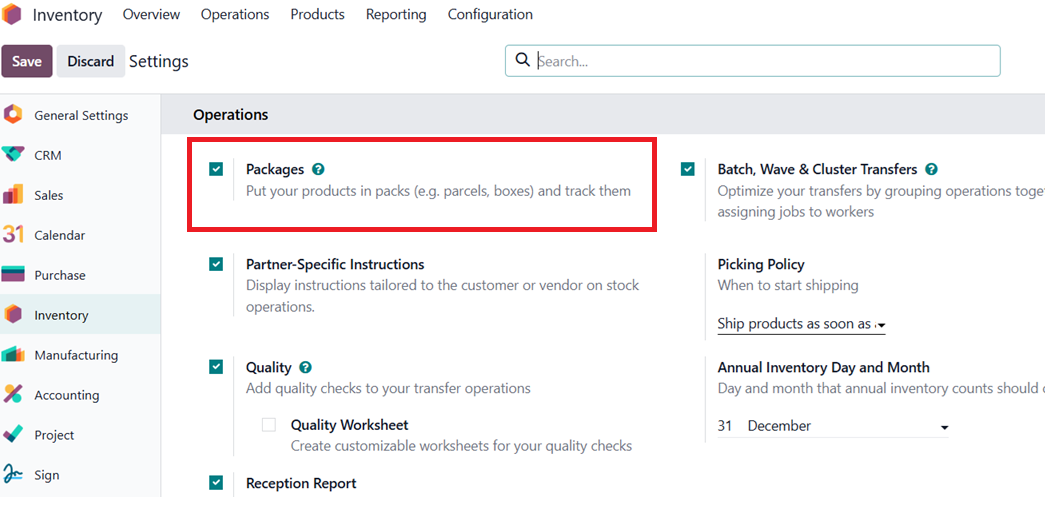
Before using the Put in Pack feature in delivery orders, you must first enable package management in Odoo. This feature allows products to be grouped into packages during inventory operations, making it easier to organize, handle, and track shipments.
To enable it, navigate to Inventory → Configuration → Settings. Under the Operations section, enable the Packages option. Once enabled, click Save to apply the changes.
Enabling this feature activates package management across inventory operations, allowing you to create packages, assign products to them, and manage packaged goods throughout the warehouse workflow.
Configure Package Types
Configuring Package Types is optional but helps standardize the packaging process. Businesses can create package types such as Boxes, Cartons, Pallets, or Totes. Each package type can include dimensions, weight capacity, and other shipping-related details.
To create a package type, navigate to Inventory → Configuration → Package Types and click New. Enter a suitable Package Type Name, and configure details such as the Reference Sequence, Sequence Prefix, Package Use (Disposable Box or Reusable Box), Carrier, Carrier Code, Dimensions (Length, Width, Height), Max Weight, and Barcode, if required.
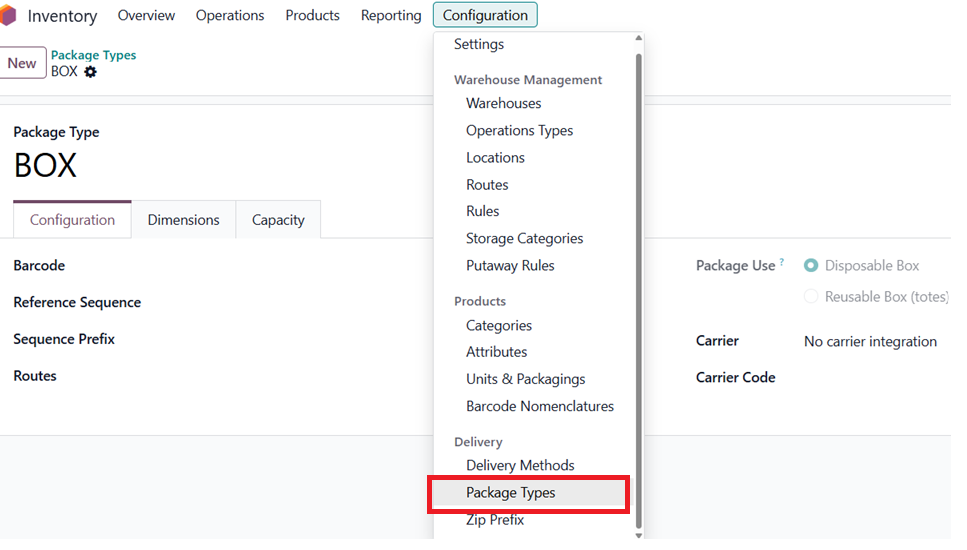
Once saved, these package types can be selected during inventory operations, providing consistency in how products are packaged and helping warehouse teams follow standardized packing procedures.
Configure the Set Package Type Option
To make package types available during delivery operations, Odoo provides the Set Package Type option within the operation type configuration.
Navigate to Inventory → Configuration → Operation Types, and open Delivery Orders. Under the operation settings, enable the Set Package Type option and Save the configuration.
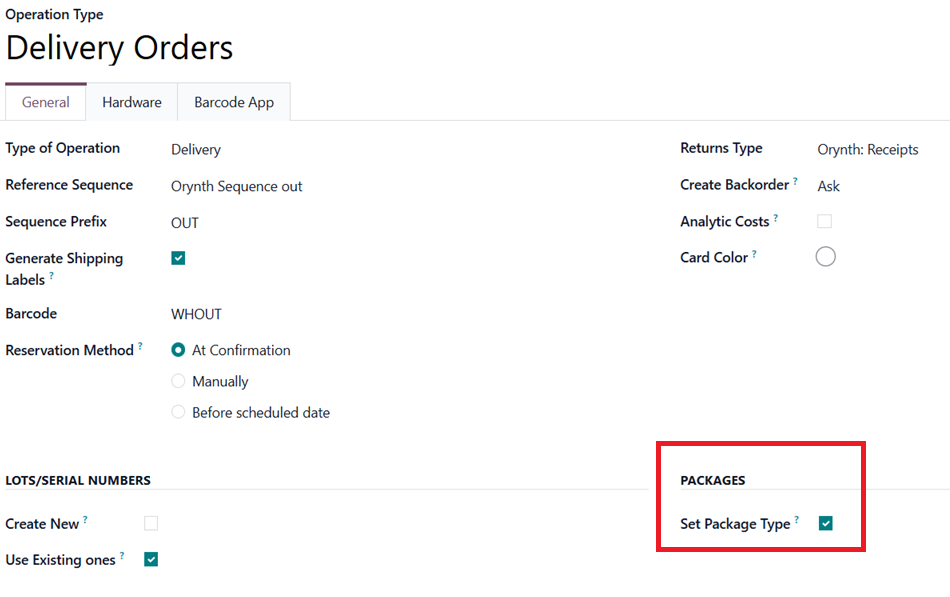
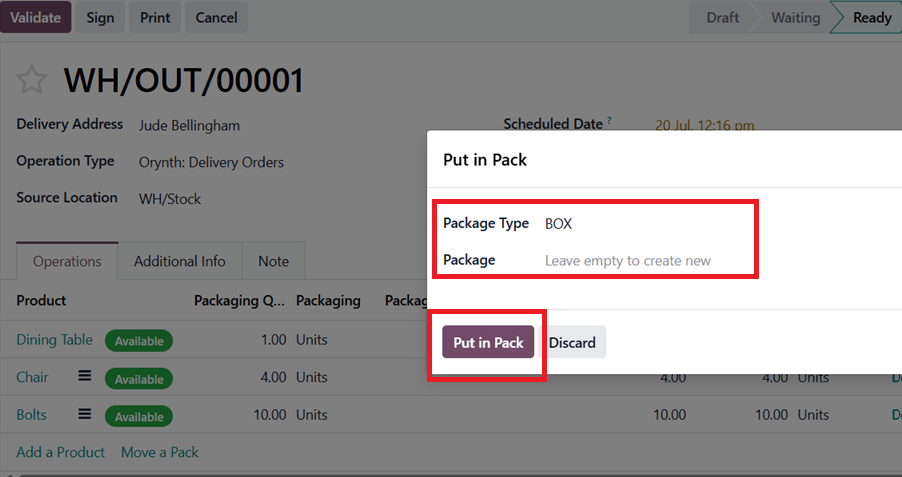
Once enabled, the Put in Pack window displays Package Type and Package fields. Users can select a package type and assign products to an existing package. They can also leave the Package field empty to let Odoo create one automatically.
Package Products Using Put in Pack
Once the required configurations are complete, you can begin packaging products directly from a delivery order.
Navigate to Inventory → Delivery Orders and open the desired delivery order. Verify the products and quantities to be delivered. Before validating the transfer, click the Put in Pack button.
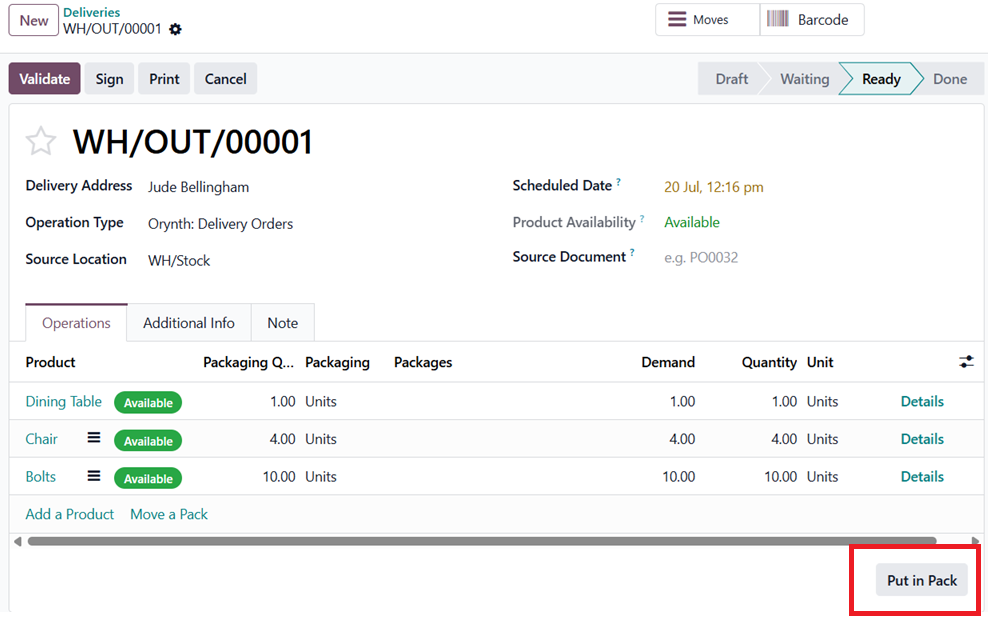
If Set Package Type is enabled, the Put in Pack window includes Package Type and Package fields. Leave Package blank to create a new package automatically. Otherwise, select an existing package.
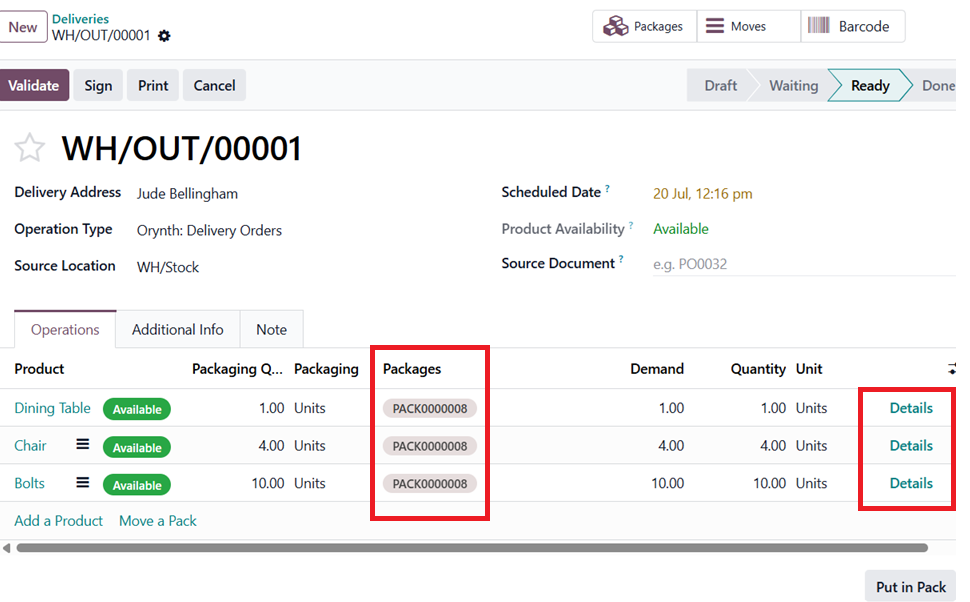
Odoo then assigns the selected products to the package. If multiple products are included in the delivery order, Odoo initially groups them into the same package. To assign products to different packages, click Details on the respective order lines and select an existing package or create a new one.
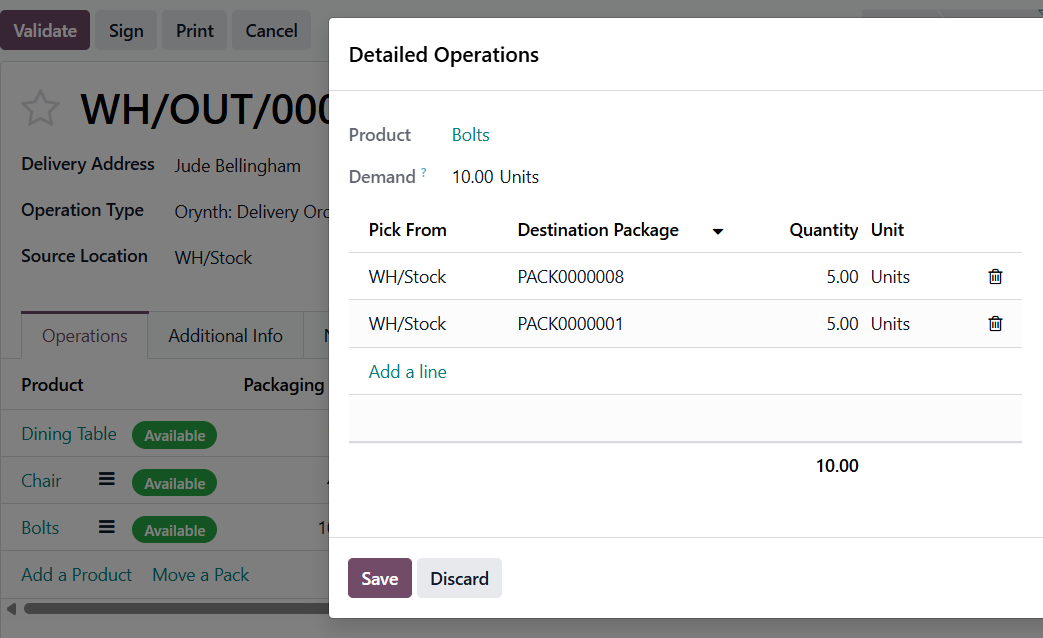
You can also split the quantity of a single product across multiple packages. For example, if a delivery contains 10 bolts, they can be packed as 5 units in one package and the remaining 5 units in another package, depending on your packaging requirements.
Once all products have been assigned to their respective packages, click Validate to complete the delivery order. Click on the Packages smart button at the top of the delivery order for quick access to the package information.
Managing Packages
To view all packages in the warehouse, navigate to Inventory → Products → Packages. Here, you can access a list of all existing packages and open any package to view its details.
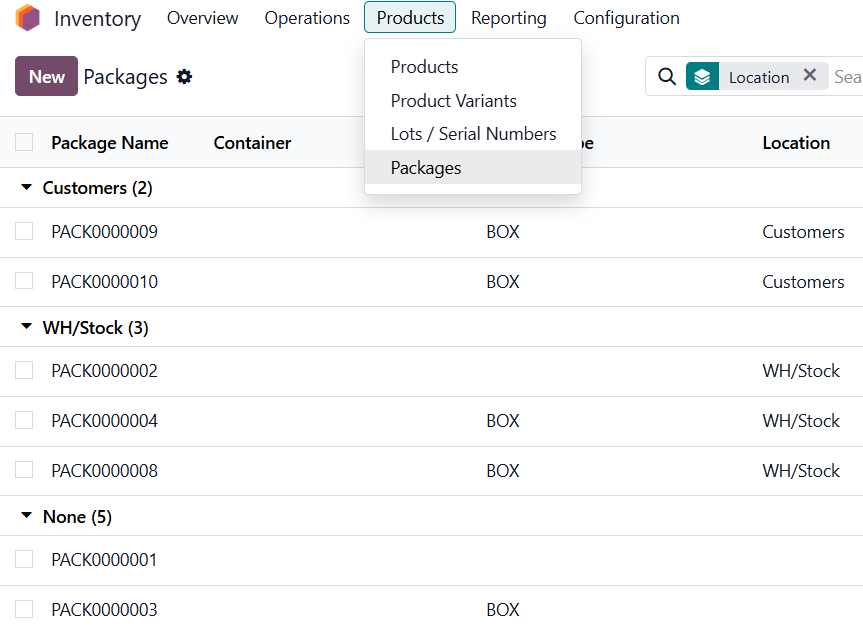
Each package record displays information such as the assigned products, package type, shipping weight, pack date, and barcode. If required, you can also click Unpack to remove the products from the package.
Conclusion
The Put in Pack feature in Odoo 19 simplifies the packaging process by allowing warehouse users to organize products into packages before validating a delivery order. Whether you’re packing multiple products together or distributing items across different packages, the feature provides greater flexibility, improves shipment organization, and streamlines warehouse operations.
By combining package management with configurable package types, businesses can establish standardized packing workflows while ensuring products are packaged efficiently for delivery.
Ready to optimize your warehouse and delivery operations with Odoo?
Partner with Infintor Solutions to implement tailored Odoo solutions that streamline inventory management, improve warehouse efficiency, and simplify order fulfillment.