
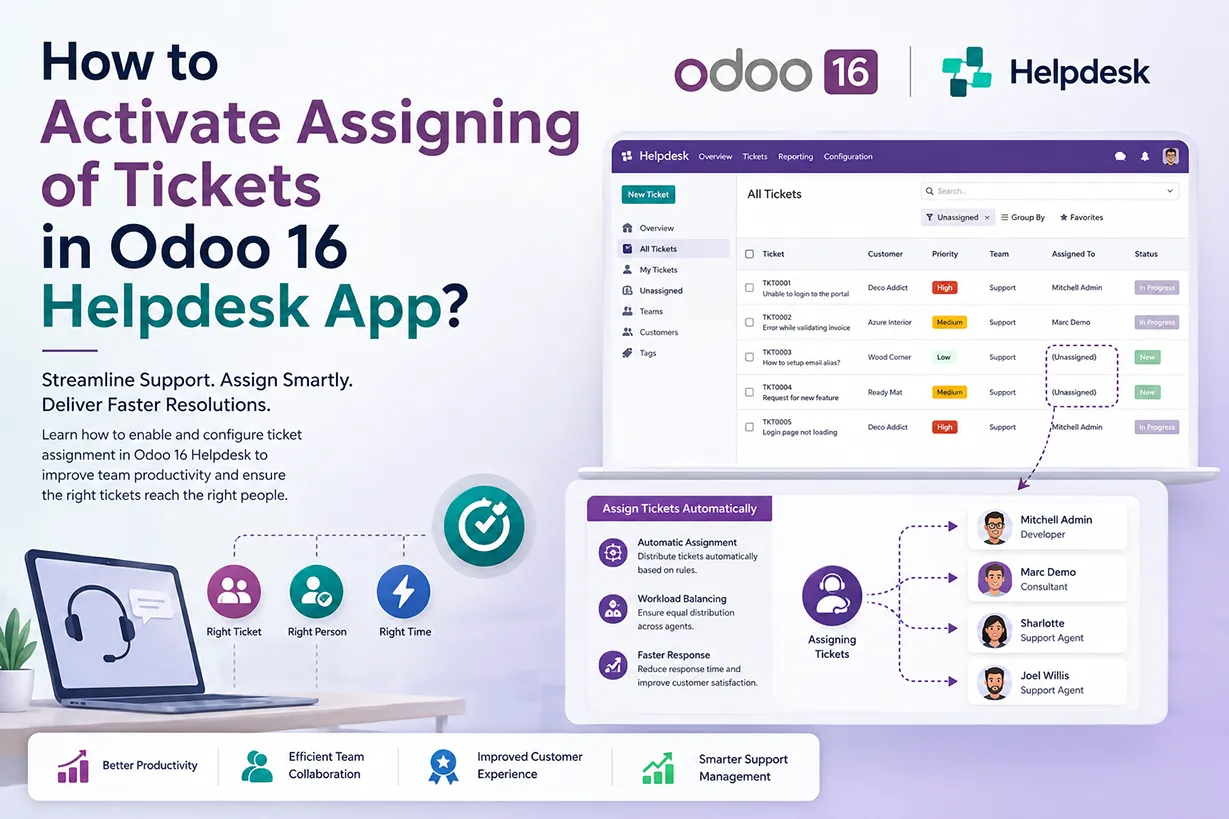
Odoo 16 Helpdesk ticket assignment helps support teams organise customer requests and distribute support tasks more effectively. When a company receives several support tickets every day, manually tracking each request can become difficult. With Odoo 16 Helpdesk, businesses can assign tickets to the right team members, define ticket visibility, and monitor the progress of customer issues from a central platform. As a result, support employees can focus on resolving customer problems instead of spending unnecessary time identifying who should handle each ticket.
The Odoo 16 Helpdesk application combines ticket management, team configuration, assignment, customer communication, and visibility controls in one system. Therefore, businesses can create a structured customer support process without relying on separate spreadsheets or communication tools. In addition, managers can control which users can access specific Helpdesk teams and tickets. This approach improves accountability because every support request can have a clear owner and an appropriate level of access.
Why Assign Tickets in Odoo 16 Helpdesk?
Assigning tickets to specific employees is an important part of an organised customer support workflow. When a ticket has a designated assignee, the responsible employee can quickly review the customer request and take the required action. At the same time, managers can identify pending tickets and follow the workload of individual support agents. Consequently, Odoo 16 Helpdesk ticket assignment can help reduce delays and improve the overall response process.
Moreover, ticket assignment becomes particularly useful when a company has multiple support employees or Helpdesk teams. For example, one team can handle technical problems while another team manages billing questions, product-related issues, or general customer inquiries. By combining Helpdesk teams with assignment and visibility settings, businesses can create a more organised support structure. This setup also makes it easier to route customer requests to employees who have the right knowledge and responsibilities.
How Odoo 16 Helpdesk Visibility Works
Ticket visibility plays an equally important role in Odoo 16 Helpdesk configuration. Assigning a ticket to an employee determines who is responsible for handling the request, while visibility settings determine who can access the Helpdesk team and its tickets. Therefore, businesses should configure both options carefully according to their internal support structure and customer service requirements.
Odoo 16 provides different visibility options for Helpdesk teams. These settings allow businesses to decide whether all internal users can access tickets or whether access should remain limited to invited users and followers. Consequently, a company can maintain better control over sensitive customer information while still allowing the appropriate employees to collaborate on support requests. This flexibility makes Odoo Helpdesk suitable for both small support teams and larger organisations with multiple departments.
Odoo 16 Helpdesk Teams and Ticket Management
Helpdesk teams provide the foundation for structured ticket management in Odoo 16. Before assigning tickets, administrators can create teams based on business requirements. For example, a company may create separate teams for technical support, sales support, installation assistance, warranty claims, or general customer service. Each team can then have its own members, assignment rules, visibility settings, and ticket workflow.
Once a Helpdesk team is configured, employees can create and manage tickets within that team. Each ticket can contain important information such as the customer name, contact details, ticket type, priority, tags, product information, sales order details, and internal followers. As a result, support agents can access the information they need without searching through multiple applications. This centralised approach also improves the quality of customer communication because employees can see the relevant history of each support request.
In this blog post, we will examine how the Odoo 16 Helpdesk module facilitates ticket assignment and improves visibility in this blog article, which will ultimately result in better customer support.
The Odoo Helpdesk module is intended to assist companies in effectively handling tickets, support requests, and customer inquiries. It offers customer support teams a consolidated platform to monitor, rank, and address client complaints. The Helpdesk module in Odoo 16 has experienced major enhancements that make it even more feature-rich and easy to use.
Setting visibility requires setting up a team first. To access the Helpdesk module. Let’s select the Configuration tab to configure the team. We can see the “Team” under this, as seen in the screenshot below.
Helpdesk Application => Configuration menu => Teams

The records of previously formed Teams, along with their pertinent information like Name, Email Alias, and Company, are displayed in the Team window.

To get more details, we can select a particular Team to view the Team page in detail.

You can examine the “Assignment & Visibility” area here, where you can adjust assignment and visibility settings. You can choose who can see tickets from this helpdesk team and who can’t by using the Visibility option. There are three options available to you here: “All internal users,” “Invited portal users,” and “Invited internal users.”
Invited internal users have access to the team and tickets they are tracking. The user can be added or removed as a follower to change this access on a per-ticket basis. Even if they are not specifically followed, a user with the helpdesk administrator access right level can still view this team and its ticket.
All internal users: Without distinction, all internal users have access to the team and all of its tickets.
Invited Portal Users and All internal users have equal access to the team and all of its tickets. Only the tickets that they are following are accessible to portal users. You can change this access on a per-ticket basis by adding or deleting the portal user as a follower.
Create an internal user after adjusting the visibility to “invited internal users.” You can access the Settings for that. You can manage users in Settings. For that, we need to choose a user from Settings and set the user as Internal User.
Settings Application => Users & Companies menu => Users => Access Rights tab => User Type => Save

Next, you can select “User” in the Helpdesk field. After that, you may use the ‘Change Password’ menu found beneath the Actions button to modify the Demo password.

Return to the Helpdesk module and create tickets after it’s finished. The ticket “Cable Colour and Lock aren’t proper” can be generated here, and the ticket’s team is indicated in the “Team” section. The “Assigned to” field bears the assignee’s mark. One might designate medium, high, or urgent as the priority. In the Type field, the type of ticket can be specified and assigned. We can refer to it as “Issue” in this case. The Tags might also be provided for filtration purposes. You can add the field you wish to include by using the Property field.

The Customer field is where you can enter the customer’s details if you need to include them in the ticket. In the designated field, you can also enter Phone, Email, and Email cc. You also need to enter the information in the fields for the product, analytical account, and sale order item.
You’ll notice an option to add followers when you scroll down. We can add Marc Demo as a follower which is illustrated in the screenshot below.

Let’s now join in as Marc Demo and exit the Mitchel Admin account.
To view the generated ticket on his account, we designated Marc Demo as the internal user. Let’s investigate it in the Helpdesk module now. You can view the created ticket in the following path below by using the Tickets function.
Settings Application => Users & Companies menu => Users => Access Rights tab => User Type => Save
We may now login as Mitchel Admin and exit Marc Demo.

Once more, in addition to the internal user, we can create a new one. Therefore, we must set him up as a public user for that. To accomplish this, allow us to create a new user. Let’s click Settings and create a new user for that.
Let’s now log in as the new user and exit Mitchel Admin.

Next, let’s try to view the just-created ticket by opening the Help Desk module. But there are no tickets available here. The reason for this is that “Laurio Pierot,” the user, is not following this ticket. Let’s log out of this user and log in as “Mitchel Admin” after making sure of this. Changing the visibility is the next step. We’ll do it by opening the Team window from Configuration in the Helpdesk module. We may set the visibility to “All internal users” here under Visibility. so that every internal user can see the ticket.
In this instance, adding followers is not necessary because the ticket is seen by all internal users. We may now log out of Mitchel Admin and log in as “Laurio Poiret,” the newly established user. You may now view the new tickets that are visible in the Helpdesk Overview.

Let’s now log in as “Mitchel Admin” instead of the new account and set the third visibility option, “Invited Portal users and all internal users.” We now need to set the portal user under Settings. We may therefore access the Settings window for that. Select “Manage users.” We have the option to switch to a portal user by selecting “Laurio Poeriet.”
Return to the Helpdesk module and update the ticket with a follower. Allow Laurio Poiret to proceed with the ticket. After exiting Mitchel Admin, log in as LaurioPoeret is a follower, will be able to see the ticket as it appears below.

By reducing human labor, automated ticket assignment frees up support workers to concentrate on quickly addressing issues. Support staff may respond to consumer inquiries more quickly and accurately with improved visibility and tracking, which raises customer satisfaction. The Odoo 16 Helpdesk module ensures scalability and constant service quality by adapting to changing support requirements as businesses develop.
Managing Customer Support Requests with Odoo Helpdesk
Odoo Helpdesk ticket management allows businesses to maintain a complete record of customer support requests. Instead of handling customer issues through disconnected emails or manual records, employees can use Helpdesk tickets to document problems, conversations, assignments, and follow-up activities. Therefore, the support team can maintain a consistent workflow from the moment a customer raises an issue until the team resolves and closes the ticket.
Furthermore, ticket priorities help support teams determine which requests require immediate attention. A high-priority or urgent ticket can receive attention before a routine request. Similarly, ticket types and tags help employees categorise support issues and find relevant tickets more quickly. With these features working together, Odoo 16 Helpdesk can provide a more structured customer support environment.
Improving Helpdesk Productivity Through Ticket Assignment
Effective ticket assignment can improve the productivity of customer support teams because employees know which requests require their attention. When managers assign tickets according to employee responsibilities or expertise, support agents can spend more time solving problems and less time determining who should handle them. In addition, clear ownership reduces the possibility of tickets being overlooked.
Another advantage is improved workload visibility. Managers can review assigned tickets and identify employees who have a large number of pending requests. They can then redistribute work when necessary. Consequently, Odoo 16 Helpdesk ticket assignment can support better workload management and help businesses maintain consistent customer service during busy periods.
Odoo 16 Helpdesk for Growing Businesses
As a business grows, its customer support requirements usually become more complex. More customers can generate more inquiries, while additional employees can create new access and responsibility requirements. Odoo 16 Helpdesk provides a scalable environment where businesses can organise support teams, control ticket visibility, and assign requests to the appropriate users.
In addition, companies can gradually improve their Helpdesk workflow as their support operations expand. A small company may begin with one Helpdesk team and a few internal users. Later, it can introduce separate teams, ticket categories, priorities, followers, and more detailed access controls. Therefore, businesses can adapt Odoo Helpdesk to changing operational requirements without replacing their entire customer support system.
Best Practices for Odoo 16 Helpdesk Ticket Assignment
A well-configured Helpdesk environment should combine clear team responsibilities with appropriate ticket assignment and visibility rules. First, administrators should define the purpose of each Helpdesk team. Next, they should add the employees who need access to that team. After that, they can configure visibility based on whether tickets should remain internal, become available to invited users, or involve portal users.
Businesses should also use meaningful ticket types, priorities, and tags. These fields make it easier for support employees to understand the nature and urgency of each request. At the same time, companies should avoid giving unnecessary access to users who do not need to view particular tickets. By maintaining a clear access structure, organisations can improve both operational efficiency and information control.
Odoo 16 Helpdesk Ticket Assignment and Customer Experience
Fast and organised ticket handling directly affects the customer experience. When employees receive support requests promptly and understand who owns each ticket, they can respond more consistently. Furthermore, customer information, communication details, ticket history, and related business records remain available within the Helpdesk workflow. This allows support agents to understand the issue before responding to the customer.
As a result, Odoo 16 Helpdesk can help businesses build a more reliable customer service process. Instead of treating each inquiry as an isolated request, teams can maintain a complete record of customer interactions. This visibility also helps managers identify recurring issues and improve internal support processes over time.
Odoo 16 Helpdesk Configuration for Better Support Operations
Proper configuration is essential for getting the most value from Odoo 16 Helpdesk. Administrators should review Helpdesk teams, users, visibility settings, ticket assignment, ticket stages, priorities, and customer access before moving the system into regular use. A structured configuration ensures that every support employee understands the workflow and knows where to find assigned tickets.
In addition, businesses should periodically review their Helpdesk configuration. As employees change roles and support requirements evolve, the original access structure may no longer be suitable. Regularly reviewing users, teams, followers, and visibility settings helps keep the Helpdesk environment organised. Therefore, Odoo Helpdesk configuration should be treated as an ongoing business process rather than a one-time setup task.
Benefits of Using Odoo 16 Helpdesk for Ticket Management
Odoo 16 Helpdesk brings several customer support activities together in one platform. Ticket assignment gives employees clear responsibility, while visibility settings help administrators control access. At the same time, priorities and tags make it easier to organise support requests according to urgency and category. Together, these features create a more structured ticket management process.
The centralised nature of Odoo also reduces the need to switch between multiple systems while handling customer issues. Support employees can access customer information and ticket details from the Helpdesk application. Managers can then monitor open requests and review the workload of support teams. Consequently, businesses can improve internal coordination while providing customers with a more consistent support experience.
When Should You Use Odoo 16 Helpdesk Ticket Assignment?
Odoo 16 Helpdesk ticket assignment is especially useful when several employees handle customer support requests. It can also benefit businesses that need separate support teams for different products, services, regions, or departments. For example, a software company can create separate teams for implementation support, technical assistance, billing, and general inquiries. Each ticket can then reach the appropriate team and responsible employee.
Even smaller businesses can benefit from structured ticket assignment. As the number of customers increases, informal methods of tracking support requests can become difficult to manage. By introducing Helpdesk teams and clear ticket ownership early, businesses can create a scalable support process. This makes it easier to handle increasing ticket volumes without losing visibility over customer requests.
Conclusion: Improve Ticket Assignment with Odoo 16 Helpdesk
Odoo 16 Helpdesk provides businesses with a practical way to organise customer support tickets, assign responsibilities, and control ticket visibility. By configuring Helpdesk teams correctly, administrators can ensure that employees access the tickets relevant to their roles. At the same time, ticket assignment gives each support request a clear owner, which can improve accountability and response times.
Overall, Odoo 16 Helpdesk ticket assignment is more than a simple method for allocating support requests. It forms part of a complete customer support workflow that includes ticket categorisation, priorities, followers, visibility, customer information, and team management. With the right configuration, businesses can create a scalable Helpdesk environment that supports efficient operations and better customer service as the organisation grows.