
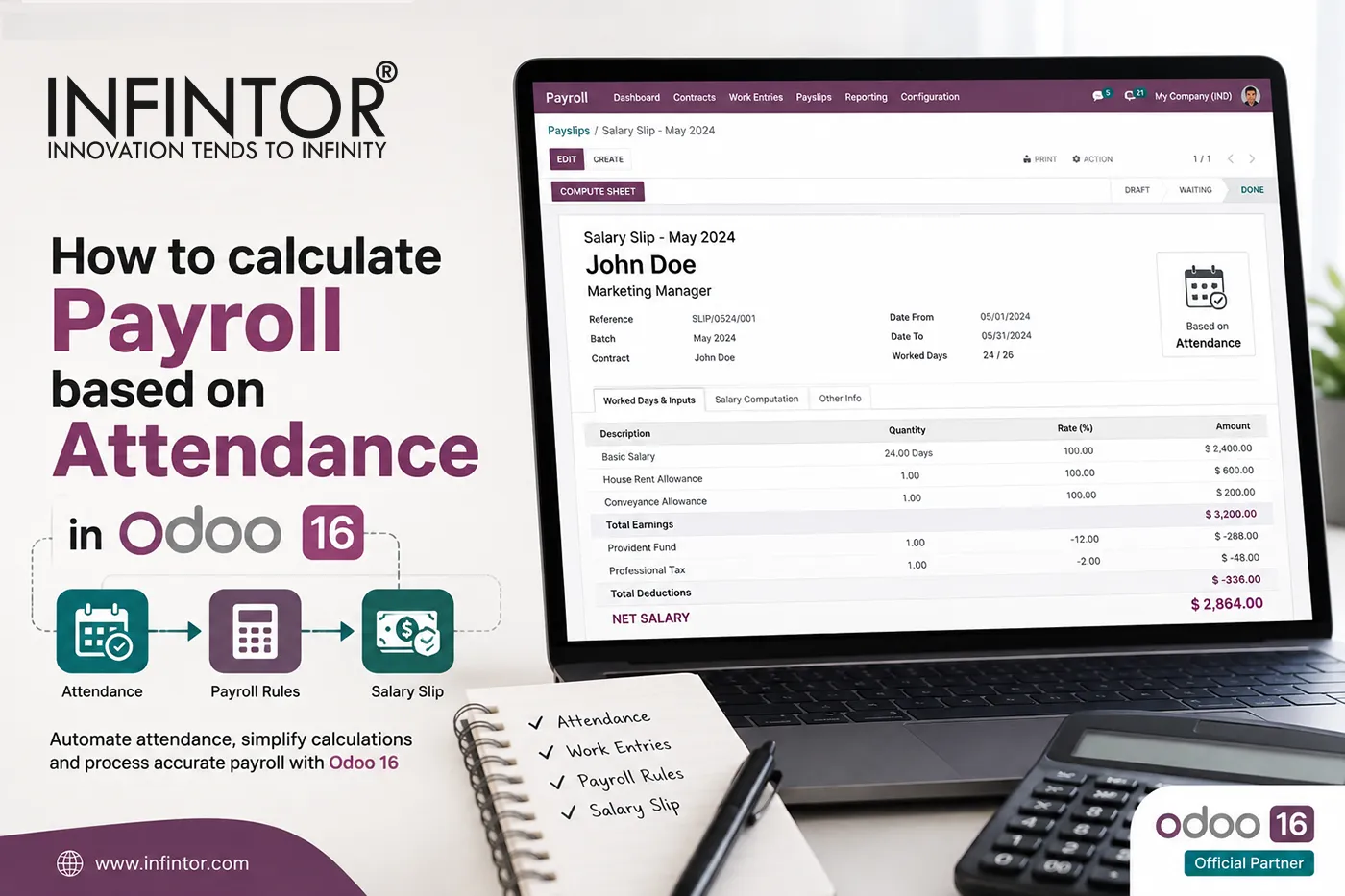
Calculating employee payroll accurately is one of the most important responsibilities of an HR and payroll department. Employee salary calculations often depend on several factors, including attendance, working hours, overtime, paid leave, unpaid leave, salary structure, allowances, deductions, bonuses, and other payroll rules. When businesses manage these calculations manually, even a small mistake in attendance data can result in an incorrect payslip.
An effective payroll management system helps businesses connect employee attendance with salary calculation and reduce manual work. With Odoo 16 Payroll, companies can integrate employee information, contracts, attendance records, work entries, time off, and salary rules within a unified ERP system. As a result, HR teams can process employee payroll more efficiently while maintaining better control over attendance and compensation.
In particular, Odoo 16 payroll based on attendance can help businesses calculate wages according to the actual working time recorded for employees. This approach can be especially useful for organizations that employ hourly workers, shift workers, temporary employees, contract workers, part-time employees, or employees whose salary depends on the number of hours or days worked.
Odoo Attendances functions as a digital time clock where employees can check in and check out, while managers can monitor employee availability. These attendance records can then contribute to the work-entry information used by Odoo Payroll.
This article explains how to calculate payroll based on attendance in Odoo 16, how employee contracts influence payroll calculations, how attendance records become work entries, and how HR teams can generate and process payslips.
Why Is Attendance Important for Payroll Calculation?
Employee attendance directly affects payroll whenever an employee’s compensation depends on the amount of time worked. For example, an employee may receive an hourly wage based on the total number of hours worked during a particular payroll period. Similarly, an organization may need to consider unpaid absences, overtime, additional working hours, or attendance-related allowances before calculating the final salary.
Accurate attendance tracking therefore provides the foundation for reliable payroll processing. Instead of asking HR employees to manually calculate working hours from paper records, spreadsheets, or separate attendance systems, businesses can maintain attendance information digitally and use it as part of the payroll workflow.
For example, suppose an employee works eight hours per day and receives an hourly wage. If the employee works fewer hours than the scheduled working hours, the payroll calculation may need to reflect the actual hours worked, depending on the company’s salary structure and payroll rules. If the employee works additional hours, the business may also need to account for overtime according to its configured payroll policies.
This becomes even more important when a company has hundreds or thousands of employees. Manually comparing attendance sheets with payroll records can consume significant HR resources and increase the possibility of errors. Odoo ERP payroll management brings these processes together so that employee attendance and payroll information can work within the same business system.
How Does Odoo 16 Calculate Payroll from Attendance?
Odoo does not simply take an attendance record and multiply it by a wage. Instead, several HR components work together to determine the final payroll amount.
The employee record provides the employee’s personal and organizational information. The employee contract defines important employment and compensation details. The working schedule determines the expected working hours. The Attendances application records actual check-in and check-out information. Odoo then uses work entries to represent the employee’s working time and other relevant situations such as time off. The Payroll application uses these work entries together with salary structures and salary rules to calculate the payslip. Odoo documentation describes a work entry as an individual record representing an employee’s work or time-related information. Work entries can represent attendance, sick leave, training, public holidays, and other work or time-off situations.
Therefore, the overall process can be understood as:
Employee → Contract → Working Schedule → Attendance → Work Entries → Payslip → Salary Calculation → Payment
This integrated workflow is one of the major advantages of using Odoo HR and Payroll instead of maintaining separate attendance and payroll spreadsheets.
How to Calculate Payroll Based on Attendance in Odoo 16
Calculating employee attendance is essential for managing human resources and ensuring the efficient operation of a business or organization. Common methods include manual tracking, time and attendance software, biometric systems, or RFID card systems. Accurate attendance tracking is essential for calculating employee compensation, including regular pay, overtime, bonuses, and other incentives. This ensures that employees are paid correctly and fairly for the hours they work.
Tracking attendance also helps organizations monitor and improve workforce productivity. It allows employers to identify patterns of absenteeism, tardiness, and underutilization of labor resources. When attendance information is connected directly with payroll, HR teams can reduce duplicate data entry and improve the consistency of payroll processing. The Odoo 16 Payroll application allows users to calculate employee salary or wages using different payroll structures and rules. Odoo Payroll works together with other HR applications, including Employees, Attendances, Time Off, and Timesheets.
Let us see how we can calculate payroll based on employee attendance in Odoo 16.
Step 1: Configure the Employee in Odoo 16
First, go to the Employees application and select the employee whose payroll needs to be calculated.
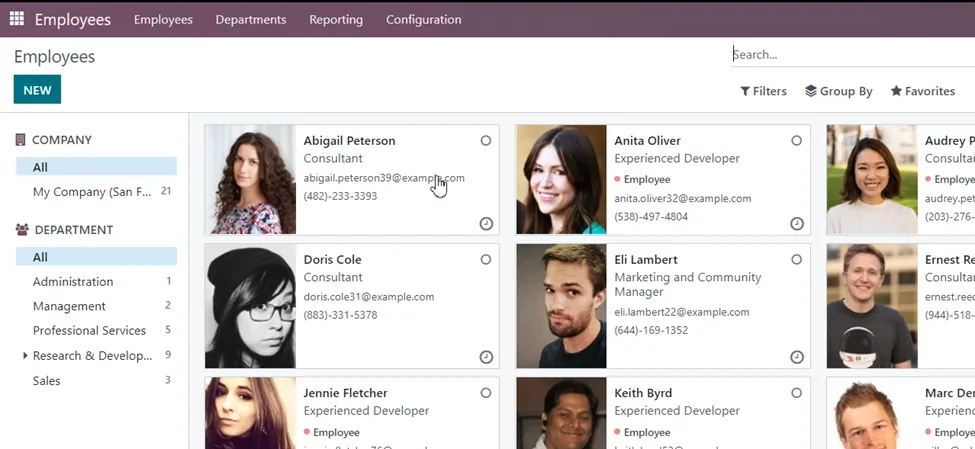
The employee profile contains important information related to the employee, including their job position, department, work information, private information, and HR-related settings. Maintaining accurate employee information is important because payroll calculations depend on the employee’s contract and salary configuration. Once you open the employee profile, you can access the employee’s contracts through the Contracts smart button.
Employee Contracts and Payroll Calculation
The contract plays an important role in Odoo payroll calculation. It connects the employee with the salary structure, working schedule, wage, and other employment-related information. Select the Contracts smart button at the top of the employee profile to view all contracts associated with that employee. The page lists the employee’s contracts under the Contract History tab. Depending on the configuration, the contract information can include the contract name, start date, end date, working schedule, monthly wage, monthly cost, yearly cost, and status. Go to the small icon at the left side of the contract that you want to use for the employee’s payroll calculation. Open the contract to access the complete configuration.
The employee contract page includes important fields such as:
- Employee
- Contract Start Date
- Contract End Date
- Salary Structure Type
- Working Schedule
- Department
- Wage on Payroll
- Job Position
- Contract Type
- HR Responsible
- Work Entry Source
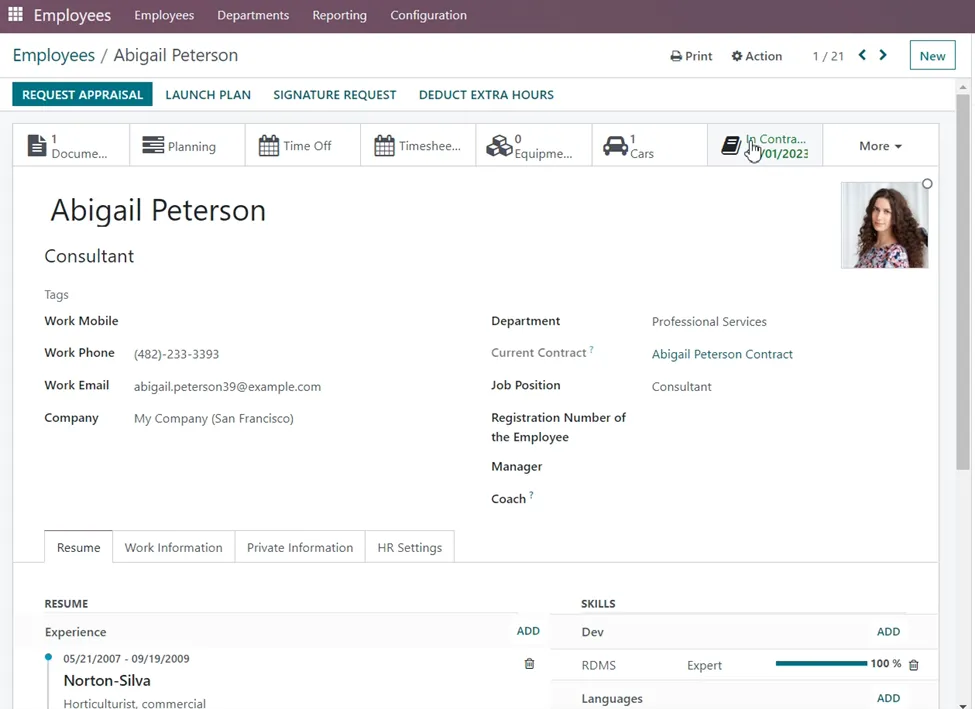
The Work Entry Source field is particularly important when calculating payroll based on attendance. The available options can include Working Schedule, Attendances, and Planning, depending on the Odoo configuration. Select Attendances as the work entry source when the business wants employee attendance records to provide the basis for payroll work entries. This configuration tells Odoo that the employee’s actual attendance information should contribute to the work-entry data used for payroll processing.
Configure Salary Information
Next, open the Salary Information tab.
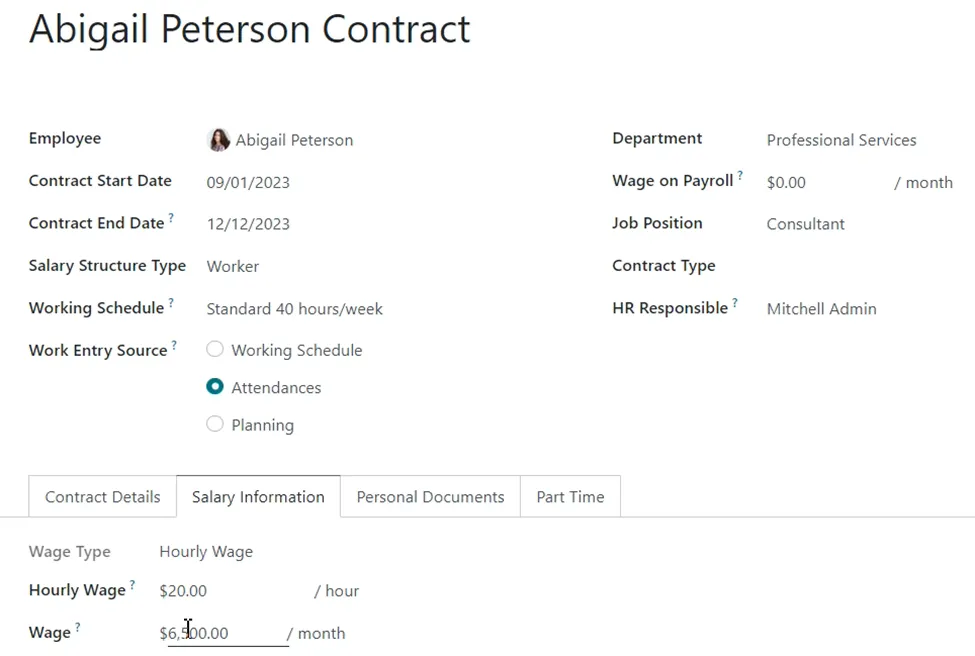
Check whether the employee’s wage is correctly entered. Depending on the salary structure, the employee may have a monthly wage or an hourly wage. The wage configuration is important because Odoo uses the configured salary structure and salary rules to determine how the payslip should be calculated. For hourly employees, the hourly wage becomes particularly important because payroll may depend on the number of hours recorded through attendance and converted into relevant work entries. For salaried employees, the payroll calculation can still consider attendance-related work entries, absences, time off, and other inputs according to the configured salary rules. Odoo 16 supports different wage types through salary structure types. For example, the standard configuration includes Monthly Fixed Wage and Hourly Wage structures. Therefore, before creating a payslip, HR administrators should verify the employee’s contract, wage, working schedule, salary structure, and work-entry source.
Step 2: Record Employee Attendance in Odoo 16
After configuring the employee contract, the next step is to record the employee’s attendance.
Go to the Attendances module.
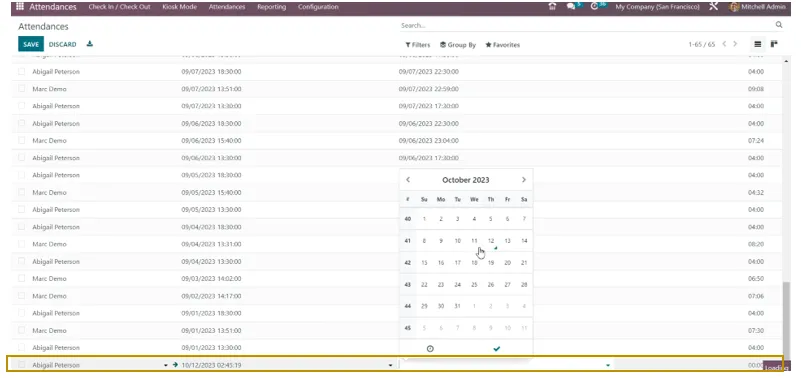
Odoo Attendances can function as an employee time clock. Employees can check in when they start working and check out when they finish their work. Managers can then monitor attendance information from the Attendances application. Click the New button in the Attendances menu. Select the employee and enter the appropriate Check-In and Check-Out date and time. After entering the check-in and check-out information, Odoo calculates the corresponding worked hours based on the recorded times.
For example, if an employee checks in at 9:00 AM and checks out at 6:00 PM, Odoo can calculate the attendance duration according to the recorded times and configured attendance rules.
After entering the attendance information, click Save.
Why Accurate Check-In and Check-Out Matters
The quality of payroll data depends heavily on the accuracy of attendance data. If an employee forgets to check in or check out, the resulting attendance information may be incomplete. Consequently, the work-entry information used for payroll may also require correction. Businesses should therefore establish a clear attendance policy. Employees should understand when they need to check in and check out, how they should correct missing attendance, and who can approve attendance adjustments. Organizations can also use suitable attendance hardware, such as RFID readers, barcode scanners, or other supported attendance methods, depending on their operational requirements. Odoo 16 includes attendance-related hardware options within its HR ecosystem. For businesses with multiple locations, shifts, or large workforces, integrating attendance collection with Odoo can significantly reduce manual attendance management.
Step 3: Review Attendance and Work Entries
Before calculating payroll, it is good practice to review the employee’s attendance records.
This step becomes particularly important when the payroll period contains multiple attendance records, holidays, overtime, approved time off, unpaid leave, or other exceptions. Odoo Payroll uses work entries to represent the employee’s working time and related payroll-relevant situations. These work entries can originate from different HR applications and can include attendance, time off, planning, or other configured sources. Therefore, attendance and work entries should not be treated as completely separate concepts. Attendance records represent the employee’s actual check-in and check-out activity, while work entries provide payroll-relevant records that Odoo can use when generating payslips. If there are conflicting or incorrect work entries, HR users should resolve them before processing payroll. Odoo’s payroll workflow is designed to identify work-entry issues that need attention before payslips are finalized.
This validation step can help prevent payroll errors.
Step 4: Open the Odoo 16 Payroll Module
Now that the employee attendance has been recorded, the next step is to calculate the employee’s payroll.
Go to the Payroll application from the Odoo Apps dashboard.
The Payroll module brings together employee contracts, work entries, salary structures, salary rules, and other payroll inputs to generate employee payslips. Odoo Payroll can process regular employee wages as well as other payroll components depending on the salary structure and localization configured for the company. For a single employee, you can create an individual payslip. For organizations processing payroll for many employees, Odoo also provides batch-based payroll processing.
Step 5: Create a New Payslip
Navigate to:
Payroll → Payslips → To Pay → New
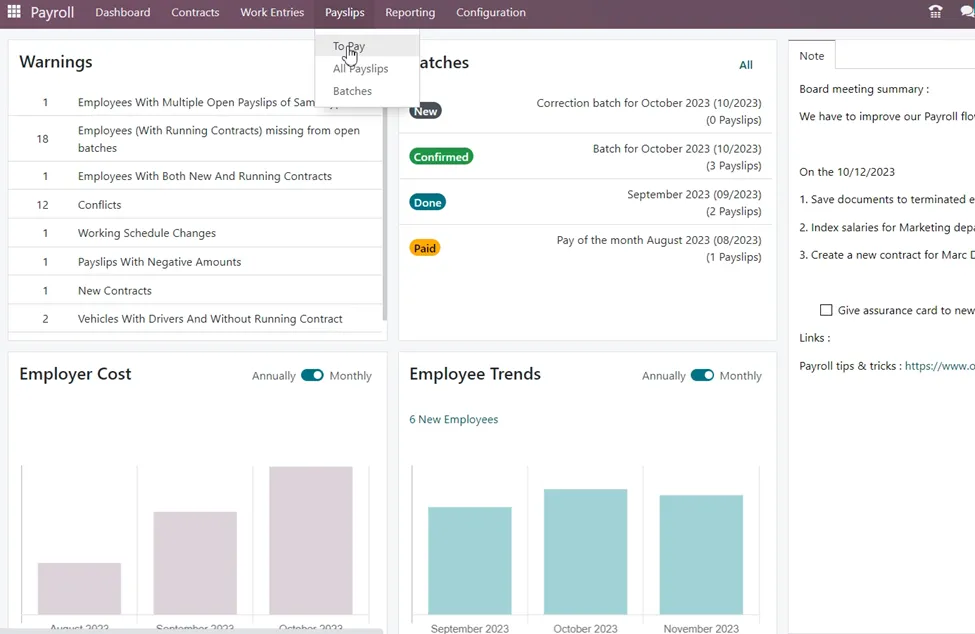
Select the New option to create a payslip.
On the payslip form, select the employee from the Employee field. Once you select the employee, Odoo can automatically populate related information based on the employee’s active contract and payroll configuration. Depending on the setup, the payslip can display information such as:
- Employee
- Period
- Contract
- Batch
- Salary Structure
- Worked Days
- Work Hours
- Other Inputs
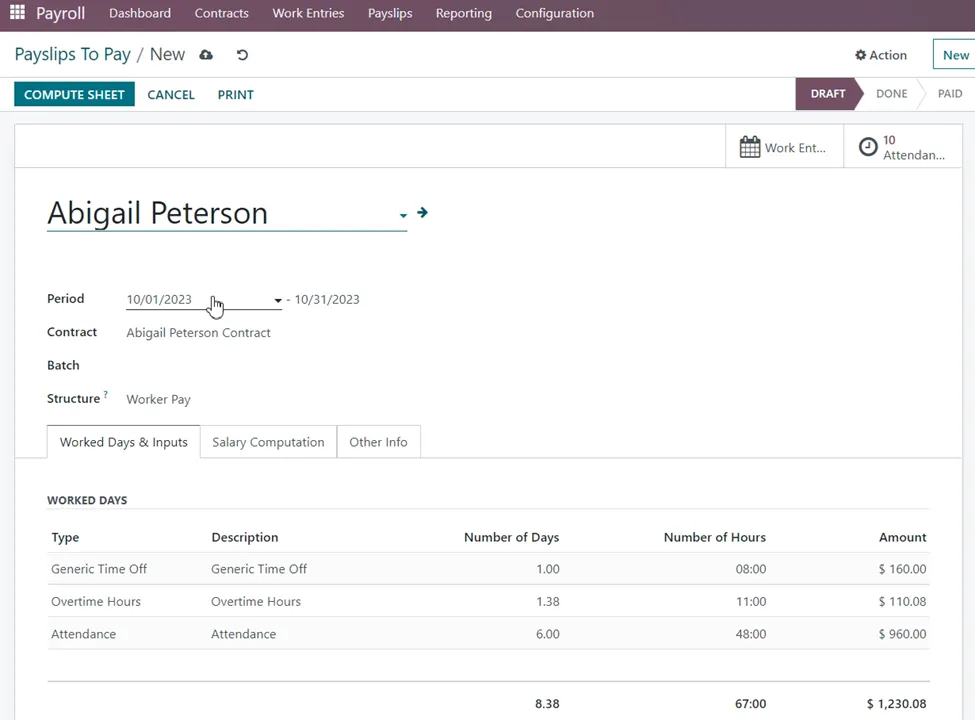
The exact fields and values can depend on the installed applications, payroll localization, employee contract, and salary configuration.
Step 6: Check Worked Days and Inputs
Open the Worked Days and Inputs tab.
This section is particularly important when you want to calculate payroll based on attendance. The payslip can contain work-related information such as attendance, time off, overtime, and other configured payroll inputs. The work-entry information provides the basis for salary rules that determine how different components of the employee’s compensation should be calculated.
For example, a company may configure payroll rules that consider:
- Regular working hours
- Overtime hours
- Paid leave
- Unpaid leave
- Public holidays
- Absence
- Bonuses
- Allowances
- Deductions
- Other payroll inputs
Because the salary structure controls how these components affect the final payslip, HR administrators should carefully configure salary rules before running payroll. Odoo’s documentation explains that salary structures contain rules that calculate payslip amounts.
Step 7: Compute the Employee Payslip
After checking the employee’s worked days and other inputs, select Compute Sheet at the top-left of the payslip. Odoo calculates the payslip according to the employee’s salary structure and configured salary rules. The Salary Computation tab then displays the calculated payroll components.
Depending on the configuration, the payslip can include:
- Basic Salary
- Allowances
- Bonuses
- Overtime
- Tax deductions
- Other deductions
- Benefits
- Other salary components
- Gross Salary
- Net Salary
The final amount depends on the employee’s contract, salary structure, work entries, payroll rules, and applicable localization. Therefore, businesses should avoid assuming that attendance alone determines the final salary. Instead, attendance provides one important source of payroll information, while salary rules determine how that information affects the payslip.
Step 8: Review the Salary Computation
Before confirming the payslip, review the calculated values carefully.
The HR or payroll administrator should verify that the number of worked days and hours is correct. They should also check whether the employee’s leave, overtime, allowances, deductions, and other payroll inputs appear correctly. If the calculated salary appears incorrect, review the employee contract and work-entry information before making changes to the final payslip.
For example, an unexpectedly low salary could result from missing attendance records, an incorrect working schedule, an incorrect contract, an inactive contract, unpaid time off, or a salary rule that does not match the company’s payroll policy. Likewise, an unexpectedly high salary could result from duplicate attendance, incorrect overtime entries, or an incorrectly configured salary rule. This is why a structured payroll workflow is important. Rather than correcting errors after payment, HR teams can review the source information before finalizing the payslip.
Step 9: Create the Draft Accounting Entry
Once the payroll calculation is correct, select Create Draft Entry or the corresponding accounting action available in the configured Odoo Payroll workflow. This step can create the payroll accounting entry based on the payroll configuration. When payroll accounting is integrated with Odoo Accounting, salary-related entries can be managed within the same ERP environment. Odoo 16 Payroll provides configuration options for payroll accounting and related accounting workflows. This integration can help finance teams maintain better visibility into salary expenses, payroll liabilities, and related accounting records.
Step 10: Process the Payslip and Make the Salary Payment
After reviewing the payslip and creating the required accounting entry, proceed with the payroll payment process. Depending on the company’s configuration and payroll workflow, the payslip status can move through different stages until the employee’s salary is marked as paid. To create the salary payment, use the relevant payment option available in the payslip workflow. A pop-up window may ask you to select the appropriate journal. Select the required journal and confirm the transaction. After successful processing, the employee’s salary payment can be recorded against the payslip. The exact payment workflow can vary depending on the accounting configuration, country localization, payment method, and installed Odoo applications.
Understanding Attendance-Based Payroll Calculation with an Example
Consider an employee who receives an hourly wage. Suppose the employee’s configured hourly wage is ₹500 and the employee works 160 hours during the payroll period.
The basic calculation could be:
Hourly Wage × Worked Hours = Basic Earnings
Therefore:
₹500 × 160 hours = ₹80,000
However, the final payroll amount may differ because businesses can have additional salary rules, overtime, allowances, deductions, taxes, leave adjustments, or other payroll components.
For example, if the employee works additional overtime hours, the business may have a salary rule that calculates overtime separately. If the employee takes unpaid leave, the payroll structure may reduce the applicable salary. If the employee receives a transport allowance or performance bonus, those amounts can also affect the final payslip. This example demonstrates why an Odoo payroll system should not be viewed simply as an attendance calculator. Instead, Odoo connects attendance and work information with a configurable payroll engine.
Attendance-Based Payroll for Hourly Employees
Attendance-based payroll is particularly useful for hourly employees. In a traditional spreadsheet-based payroll process, HR staff may have to collect attendance records, calculate total working hours, multiply those hours by the employee’s hourly rate, calculate overtime, deduct unpaid leave, and then prepare the payslip. As the number of employees increases, this process becomes increasingly difficult to maintain manually. With Odoo, the business can configure an hourly wage structure and use work entries to support payroll processing. Odoo’s Payroll documentation identifies Hourly Wage as a supported wage type for employees whose compensation depends on the number of hours worked.
This can make Odoo particularly suitable for businesses with:
- Hourly workers
- Part-time employees
- Shift-based employees
- Temporary employees
- Contract workers
- Field workers
- Production workers
- Service workers
- Retail employees
- Hospitality employees
- Logistics workers
The exact payroll treatment should always follow the company’s employment policies and applicable local regulations.
Odoo Payroll for Monthly Salaried Employees
Although attendance-based payroll is especially useful for hourly workers, monthly salaried employees can also benefit from integrated attendance and payroll management. A monthly employee may receive a fixed salary every month. However, attendance information can still be important for determining absences, unpaid leave, overtime, attendance-related benefits, and other payroll inputs.
For example, an employee with a monthly fixed salary may receive the same basic salary each month while overtime and unpaid absence are calculated separately. Therefore, connecting Odoo Attendance with Odoo Payroll provides HR teams with a more complete picture of employee work information. Odoo’s structure types can define whether employees use a fixed monthly wage or hourly wage, which allows businesses to create different payroll structures for different employee groups.
How Work Schedules Affect Payroll in Odoo 16
Working schedules are another important component of payroll. A working schedule tells Odoo when employees are expected to work. For example, a company may configure a standard Monday-to-Friday schedule, a six-day working week, rotating shifts, or another schedule that reflects its business operations. Odoo 16 allows working schedules to be configured under the Payroll configuration area. Working schedules define working days, working periods, and related work-entry types. This configuration matters because attendance should be evaluated against the employee’s expected working time. If the working schedule is incorrect, payroll-related work entries may also become incorrect.
For example, suppose an employee works from Monday to Saturday, but the contract uses a Monday-to-Friday schedule. The resulting work-entry and attendance interpretation may not match the company’s actual payroll policy. Therefore, HR administrators should review working schedules before processing payroll.
Odoo Attendance, Time Off and Payroll Integration
Employee attendance is only one part of workforce management.
Employees may also take annual leave, sick leave, unpaid leave, public holidays, or other approved time off. These situations can affect payroll. Odoo integrates Time Off with Payroll through work entries. Odoo documentation explains that time-off types can be configured to create work entries in the Payroll application. This integration helps businesses distinguish between actual attendance and other types of employee time.
For example, an employee who does not appear in the Attendances application on a particular day may not necessarily be absent. The employee could be on approved paid leave. Therefore, payroll administrators should not calculate salary solely by counting attendance records. They should also consider approved time off and other work-entry types. This distinction is particularly important for businesses that want accurate employee payroll calculation based on attendance and leave.
Overtime and Additional Working Hours
Many organizations need to calculate overtime in addition to regular working hours. Overtime payroll can become difficult when employees work different shifts or additional hours across multiple locations. An integrated ERP system can help organizations record and manage additional work information alongside employee attendance and payroll. However, overtime should be configured according to the company’s payroll policy and applicable labor regulations. The business should define when additional working hours qualify as overtime and how those hours affect employee compensation. Within Odoo, work-entry types and salary rules can be configured to represent different categories of working time. Odoo’s Payroll documentation lists overtime-related work-entry types among the available payroll concepts. This allows businesses to create a more structured payroll process rather than relying on manual overtime calculations in spreadsheets.
Common Problems When Calculating Payroll from Attendance
Even with an ERP system, incorrect configuration can result in incorrect payroll calculations. One common problem occurs when an employee has no valid contract. Payroll depends heavily on contract information, so the employee should have the appropriate active contract. Another issue occurs when the contract uses the wrong working schedule. If the schedule does not match the employee’s actual working hours, the resulting work-entry information may require correction. Missing check-in or check-out records can also create problems. If attendance data is incomplete, HR teams should review and correct the attendance record before processing payroll. Duplicate attendance records can create another issue. If the same employee has duplicate records for the same working period, payroll administrators should verify the data before calculating the payslip. Work-entry conflicts can also occur when multiple HR applications generate overlapping or conflicting information. Odoo provides a dedicated work-entry workflow for reviewing and resolving conflicts before generating payroll.
How to Fix Incorrect Payroll Calculations in Odoo 16
When a payslip does not show the expected amount, do not immediately change the salary amount manually. Instead, follow a structured troubleshooting process. First, verify the employee’s active contract. Check the contract start date, end date, wage, salary structure, and working schedule. Next, review the employee’s attendance records. Make sure all required check-in and check-out records exist and contain the correct dates and times. Then review the work entries. Confirm that the correct work-entry types appear for attendance, time off, overtime, or other relevant situations. After that, review the salary structure and salary rules. A salary rule may intentionally increase or reduce a particular salary component. Finally, regenerate or recompute the relevant payroll information and review the payslip again. This approach is safer than manually modifying the final salary amount because it addresses the underlying source of the payroll calculation.
Benefits of Using Odoo 16 for Attendance-Based Payroll
Using Odoo for attendance and payroll management can provide several operational benefits.
The first benefit is centralized employee information. Employee records, contracts, attendance, time off, and payroll can operate within the same ERP ecosystem. The second benefit is reduced manual data entry. HR teams do not have to repeatedly transfer attendance information from one spreadsheet to another system. The third benefit is better payroll accuracy. When the underlying attendance and contract information is correct, Odoo can apply configured salary rules consistently. Another advantage is greater visibility. HR managers can review employee attendance and payroll information from the same business platform. Odoo also provides payroll reporting capabilities. The Payroll reporting area can provide metrics such as payslips, gross wage, net wage, work days, work hours, paid time off, and other payroll measures. This reporting capability can help management analyze payroll costs and employee work information more effectively.
Why Businesses Should Automate Payroll with Odoo ERP
Manual payroll processing becomes increasingly difficult as a company grows.
A small organization with ten employees may manage payroll using spreadsheets. However, a company with hundreds of employees, multiple departments, different salary structures, multiple shifts, and complex attendance requirements can quickly outgrow spreadsheet-based payroll. An ERP-based payroll system can provide a more scalable solution. With Odoo ERP, businesses can connect HR operations across employee management, attendance, time off, payroll, accounting, and other business processes. This creates a connected workflow in which employee information flows between applications rather than being repeatedly entered by different teams.
For example, an employee’s attendance can contribute to work-entry information. Work entries can then contribute to the employee’s payslip. Payroll accounting can subsequently connect with the company’s financial records. This type of integration can reduce administrative work while improving data consistency.
Odoo Payroll Configuration for Different Business Requirements
Every organization has different payroll requirements.
A manufacturing company may need shift-based attendance, overtime, production-related allowances, and multiple employee categories. A retail company may need attendance tracking across multiple stores and different working schedules. A service company may have employees working from customer locations and require flexible attendance management. A logistics company may need shift management, overtime calculations, and employee attendance across different locations. A professional services company may primarily use monthly salaries while still requiring attendance and leave tracking. Odoo provides a flexible framework that allows businesses to configure employee contracts, working schedules, work-entry types, salary structures, and salary rules according to their operational requirements. However, businesses should configure payroll carefully rather than simply installing the application and expecting it to automatically match every payroll policy.
Odoo 16 Payroll and Salary Structures
Salary structures determine how employee compensation is calculated.
For example, a basic salary structure can contain rules for basic wage, allowances, deductions, taxes, overtime, and other components. Different employee groups can use different structures. A company may therefore create separate payroll structures for permanent employees, hourly workers, managers, contract employees, or other employee categories. Odoo’s payroll documentation explains that salary structures contain salary rules, and these rules determine how payslip amounts are calculated. This flexibility allows organizations to build payroll processes that better reflect their internal compensation policies. At the same time, payroll administrators should carefully test salary rules before deploying them to production because a small configuration error can affect multiple payslips.
Payroll Localization and Compliance
Payroll requirements vary between countries. Taxes, social security contributions, employee benefits, deductions, statutory requirements, and reporting requirements can differ significantly from one country to another. Odoo provides country-specific payroll localization to support relevant payroll rules and requirements. Odoo’s documentation emphasizes that localization settings account for country-specific taxes, fees, allowances, and payroll requirements. Therefore, businesses should select the correct localization when configuring Odoo Payroll. However, ERP configuration does not replace professional legal, tax, or payroll advice. Businesses should verify their payroll configuration against the applicable employment and tax regulations in their jurisdiction.
Attendance-Based Payroll vs Manual Payroll Calculation
Traditional manual payroll requires HR staff to collect attendance information, calculate working hours, identify absences, calculate overtime, apply salary rules, prepare salary sheets, and process payments. This process can become time-consuming. With Odoo, these activities can be integrated into a single ERP environment. Instead of maintaining separate spreadsheets for attendance and payroll, HR teams can use Odoo Attendances and Odoo Payroll together. The result is a more structured payroll workflow:
Attendance Recording → Work Entry Generation → Work Entry Validation → Payslip Creation → Salary Computation → Accounting → Payment
This workflow can save time and reduce repetitive administrative tasks.
How Odoo 16 Helps HR Teams Manage Payroll More Efficiently
An effective payroll system should do more than calculate salaries. It should help HR teams understand why a particular salary was calculated. Because Odoo connects contracts, attendance, work entries, time off, and salary rules, HR administrators can trace payroll information back to its underlying data. For example, if an employee’s salary is lower than expected, the administrator can review attendance, work entries, leave, contract information, and salary rules. This level of visibility can make payroll administration more transparent. Moreover, Odoo’s reporting capabilities can help HR and management analyze payroll trends, work hours, paid time off, unpaid time off, and other workforce-related metrics.
Best Practices for Odoo Attendance and Payroll Management
Before processing monthly payroll, businesses should establish a consistent payroll checklist. Start by verifying employee contracts and ensuring that every employee has the correct active contract. Next, review attendance records and identify missing check-ins, missing check-outs, duplicate entries, and unusual working hours. Then review approved time-off requests and ensure that the correct work-entry types are generated. After that, review work-entry conflicts and resolve any issues before creating payslips. Once the work-entry information is correct, generate payslips and review the worked days, hours, salary components, deductions, and net salary. Finally, verify the accounting and payment information before completing the payroll process. This approach helps reduce payroll errors and creates a repeatable process for HR teams.
Common Odoo Payroll Mistakes to Avoid
One of the most common mistakes is creating payslips without reviewing work entries. Another common mistake is using an incorrect working schedule. Since working schedules influence work-entry information, HR teams should ensure that each employee’s schedule matches their actual employment conditions. Businesses should also avoid manually changing salary values without understanding the salary rule responsible for the calculation. If a payroll result is incorrect, identifying the underlying configuration issue is usually more effective than repeatedly adjusting the final amount. Another mistake is failing to review attendance before payroll processing. Employees may have forgotten to check out, entered incorrect times, or created duplicate records. Finally, businesses should test payroll configurations with sample employees before applying them to the complete workforce.
When Should You Consider Odoo Payroll Implementation?
Businesses should consider implementing Odoo Payroll when their existing payroll process has become difficult to manage manually. Signs that a company may benefit from Odoo Payroll implementation include frequent payroll errors, large amounts of spreadsheet-based work, disconnected attendance and payroll systems, difficulty tracking overtime, complicated leave calculations, multiple employee contracts, or a growing workforce. Odoo can provide a centralized platform for employee management, attendance, time off, payroll, and accounting. An experienced Odoo implementation partner can also analyze the company’s current payroll process, configure the required applications, migrate existing employee information, customize payroll rules where necessary, and train HR and payroll users.
Odoo Payroll Implementation for Growing Businesses
Implementing an ERP-based payroll system requires more than installing the Payroll application. A successful implementation starts with understanding the organization’s payroll process. The implementation team should identify employee categories, salary structures, attendance policies, working schedules, overtime policies, leave types, deductions, allowances, accounting requirements, and statutory requirements. The next step is to map these requirements into Odoo.
For example, an hourly employee may require an hourly wage structure, while a monthly salaried employee may require a fixed monthly wage structure. Similarly, different departments may use different working schedules. Once the configuration is complete, the business should test the payroll workflow using sample employee records. Testing helps identify configuration problems before the company starts processing live payroll.
Why Choose an Odoo Partner for Payroll Implementation?
Although Odoo provides a powerful standard payroll platform, every business has its own HR and salary policies.
An experienced Odoo implementation partner can help businesses configure the system according to their operational requirements.
An Odoo partner can assist with:
- Odoo Payroll implementation
- Employee data migration
- Attendance integration
- Payroll configuration
- Salary structure configuration
- Salary rule configuration
- Work-entry configuration
- Time-off integration
- Accounting integration
- Payroll customization
- Third-party attendance integration
- Employee training
- Payroll testing
- Odoo support and maintenance
The objective should not simply be to make payroll work once. The objective should be to build a reliable and maintainable payroll process that HR teams can use every payroll cycle.
Odoo Payroll Support and Customization
Standard Odoo Payroll can satisfy many business requirements. However, some organizations may require additional functionality.
For example, a company may need integration with an existing biometric attendance machine, a customized salary calculation, a special allowance, a custom overtime formula, a country-specific payroll workflow, or integration with an external accounting or banking system. In such cases, Odoo customization and Odoo development services can extend the standard ERP functionality. A professional Odoo development team can analyze the requirement, determine whether standard Odoo functionality can solve the problem, and develop a custom solution only when necessary. This approach helps businesses avoid unnecessary customization while still supporting unique operational requirements.
Conclusion
Calculating employee payroll based on attendance becomes much easier when attendance, employee contracts, work schedules, work entries, and payroll rules operate within a single ERP platform. With Odoo 16 Payroll, businesses can connect employee attendance with payroll processing and generate payslips using configured salary structures and salary rules. Instead of manually transferring attendance information between spreadsheets and payroll systems, HR teams can manage the complete process within Odoo. The overall process starts with configuring the employee and contract. The business then records employee attendance through Odoo Attendances. Odoo uses the relevant information to create work entries, which can then contribute to the employee’s payslip. The payroll administrator reviews worked days and inputs, computes the salary sheet, verifies the salary calculation, creates the required accounting entry, and processes the payment. This integrated approach can improve payroll accuracy, reduce repetitive HR work, increase visibility, and create a more consistent payroll process.
For organizations that manage hourly workers, shift employees, part-time employees, contract workers, or large teams, connecting Odoo Attendance with Odoo Payroll can provide significant operational advantages. If your organization needs help with Odoo Payroll implementation, Odoo Attendance integration, payroll customization, employee management, salary rule configuration, or complete Odoo ERP implementation, Infintor Solutions can help you design and implement an Odoo solution based on your business requirements.
Infintor Solutions is an Odoo ERP implementation and consulting company helping businesses streamline HR, payroll, finance, sales, inventory, manufacturing, and other business operations through Odoo ERP.
Related Odoo HR and Payroll Topics
Businesses exploring Odoo Payroll may also benefit from understanding related Odoo applications and processes.
Topics such as Odoo Employee Management, Odoo Attendance, Odoo Time Off, Odoo Payroll, Odoo Timesheets, Odoo HR Management, Odoo Payroll Implementation, Odoo ERP Implementation, Odoo Payroll Customization, and Odoo ERP Consulting can help organizations build a more integrated HR management system.
By connecting these applications, businesses can move from fragmented HR processes toward a centralized ERP-based workforce management solution.
Key Takeaways
Odoo 16 provides an integrated approach to employee attendance and payroll management. Attendance records can contribute to work entries, while employee contracts and salary structures determine how payroll calculations are performed. For accurate payroll processing, businesses should maintain correct employee contracts, working schedules, attendance records, time-off information, work entries, and salary rules. The most effective workflow is to record attendance, review work entries, create the payslip, verify worked days and inputs, compute the salary, review salary components, create the accounting entry, and process the payment. With the right configuration, Odoo Payroll can help businesses automate payroll processing, improve attendance-based salary calculations, reduce manual work, and provide better visibility into employee compensation. For businesses planning to implement or customize Odoo Payroll, working with an experienced Odoo implementation partner can help ensure that the system matches the organization’s payroll policies and operational requirements.